
- Age rating4+
- CategoryPhoto & Video
- DeveloperWEI JEN HUANG
- LanguagesEnglish
- Size3.3 MB
Links to the official App Store page
Download.org hosts no file of OpticalFlow. The button opens its official App Store page, published by WEI JEN HUANG. Listing last checked on Nov 23, 2026.
Screenshots

About
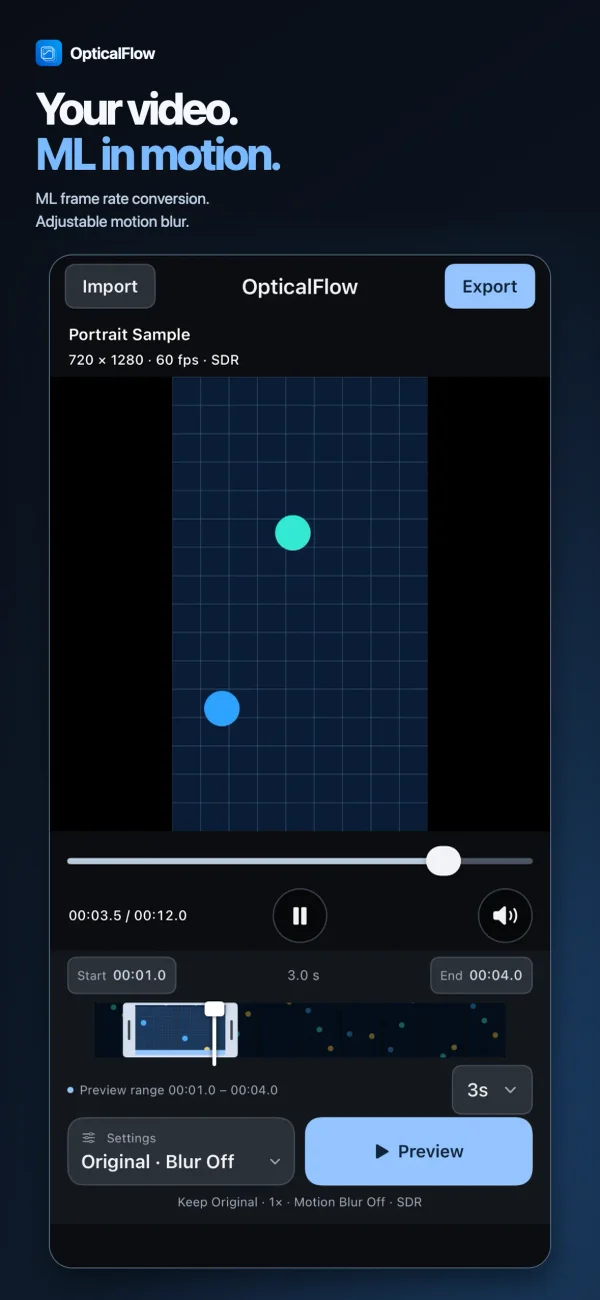
Make motion smoother, slow down a favorite moment, or trim a clip at its original quality. OpticalFlow gives you independent control over frame rate, playback speed, and motion blur. Preview your edit before you export. All video and audio processing happens on your device.
TRIM WITHOUT RE-ENCODING
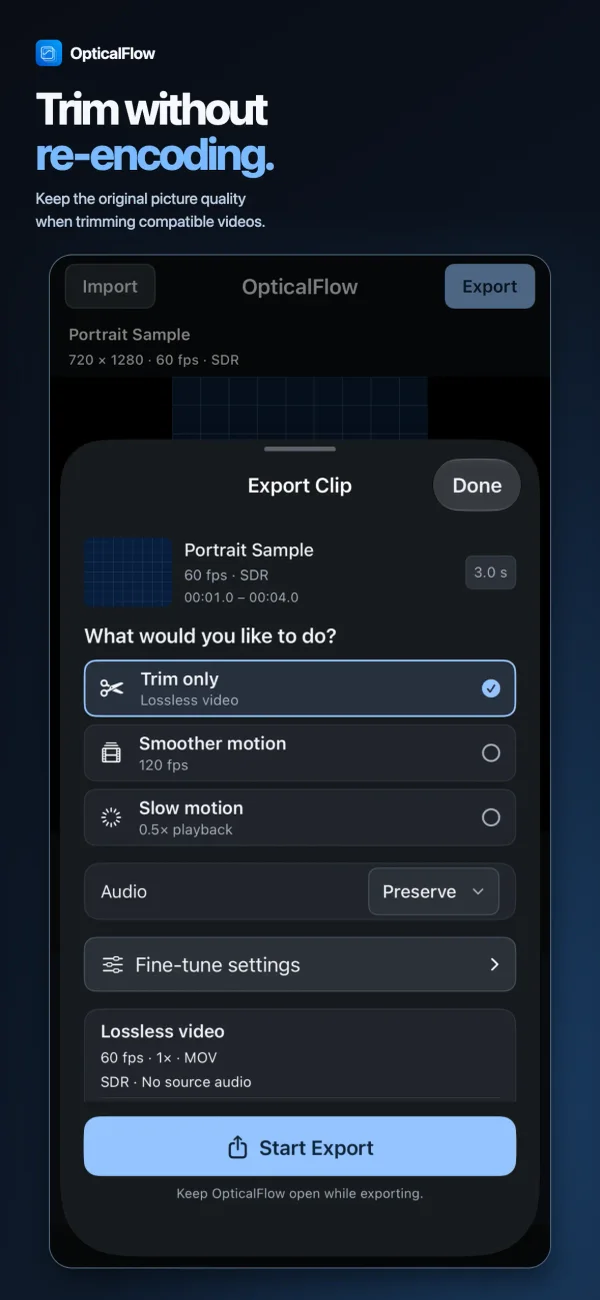
Choose Trim only and set the start and end of your clip. When the export summary shows “Lossless video,” OpticalFlow copies the original video frames and preserves the source’s Dolby Vision metadata. You can choose how to handle audio separately.
CONTROL MOTION AND SPEED
Raise the frame rate for smoother motion, lower it for a different look, or keep the source frame rate. Machine learning creates intermediate frames when needed. Adjust playback speed from 0.125× to 2× and dial in motion blur with a single strength control. Clips exported at a different playback speed are silent.
PREVIEW YOUR EDIT
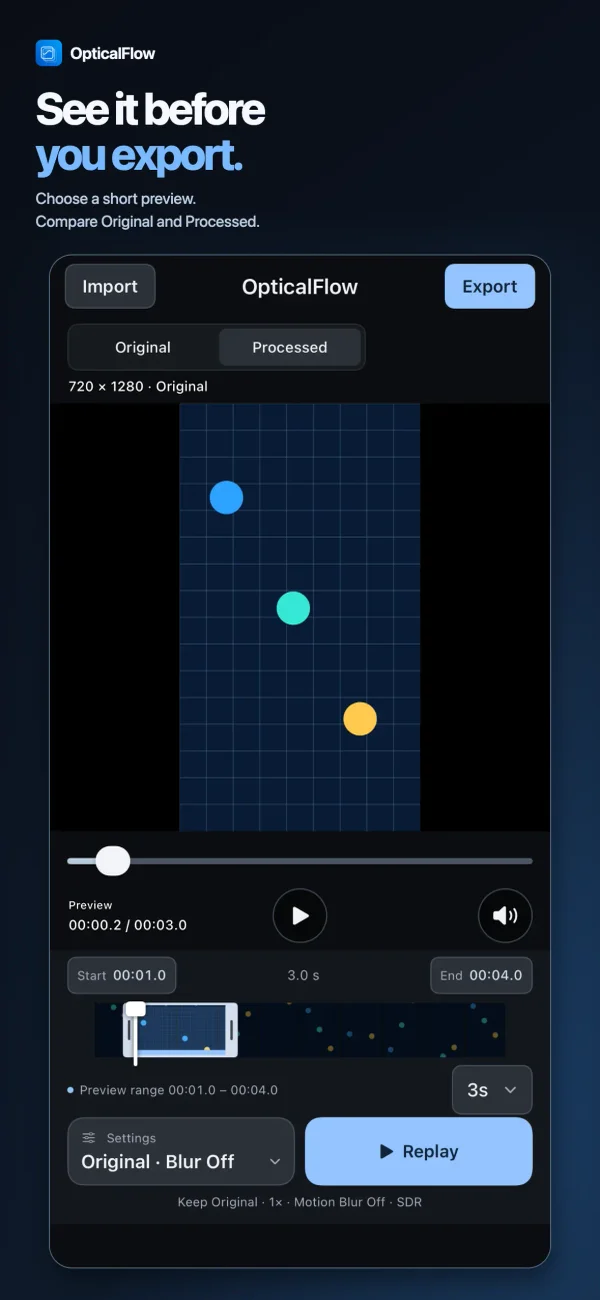
Preview 3, 5, or 10 seconds from your selected range. Switch between Original and Processed in the same player to see how a change in frame rate or blur looks before exporting the full clip.
KEEP THE AUDIO YOU RECORDED
At 1× speed, choose Preserve to keep multiple audio tracks, including alternate languages and commentary. Compatible iPhone Spatial Audio recordings retain both the spatial track and its stereo fallback. You can also convert compatible audio to AAC or export a silent clip.
EXPORT AND REVISIT YOUR CLIPS
Keep the original resolution or choose 4K, 1080p, or 720p. Export H.264 or HEVC to MOV or MP4, or use a supported ProRes profile in MOV. Open Saved Exports from the home screen or the Import menu to replay, share, or manage your clips.
Save to Photos, export to Files, or share your video from the app. Requires iOS or iPadOS 26 or later and compatible hardware. Keep OpticalFlow in the foreground during long exports. ML features and export options depend on your device and video format.
What’s new
Version 0.6.0 · Nov 20, 2026
• Trim compatible videos without re-encoding. Lossless trims keep the original picture quality and preserve Dolby Vision metadata from the source.
• Keep alternate languages, commentary tracks, and iPhone Spatial Audio when you export at 1× speed with audio set to Preserve.
• Choose Trim only, Smoother motion, or Slow motion in Settings and Export. Open Fine-tune settings when you want more control.
• Open Saved Exports from the Import menu to play or share a previous export, then return to your edit with your trim points intact.
App privacy
What WEI JEN HUANG declares on the App Store about how this app handles data.
-
Data not collected
The developer does not collect any data from this app.
Privacy practices may vary, for example with the features you use or your age.
Information
- Seller
- WEI JEN HUANG
- Category
- Photo & Video
- Version
- 0.6.0
- Updated
- Nov 20, 2026
- Released
- Nov 6, 2026
- Size
- 3.3 MB
- Requires
- iOS 26.0 or later
- Age rating
- 4+
- Price
- Free
- Languages
- English
- Copyright
- © 2026 Lilo Huang
You might also like
-
 Image Compare+Before/after slider & overlay
-
 FlowFrame: Frame InterpolationSmooth 60fps, 120fps & slow-mo
-
 SlowCam - Create SloMo VideosAI Slow Motion Video Maker
-
 ReMaster: AI Video UpscalerAI Video Upscaler to 4K 60fps
-
 FrameFlo: AI Video SmootherFrame Interpolation & Slow-Mo
-
 AI Video Smoother: 120FPSAI Slow Motion & FPS Boost
-
 Video Enhancer - EnhanceVid30>60fps, FHD>4K, Denoise
-
 ShiftCam OneSeamless Behind Every Shot
-
 Lumen CameraPro Manual Cinematic Camera
-
 CinematicalAdd black bars to your video.