Compass PRO
Gamma Play- Classificação LivreClassificação etária
- FerramentasCategoria
- 21/08/2025Atualizado
- R$ 6,99Preço
Leva à página oficial de com.gamma.compass2 na Google Play. Última verificação em 13/11/2026.
Sobre este app
Tradução automática do Google. Idioma original: Inglês (Estados Unidos).
Preciso, exato e essencial. Quando você precisar dele, onde você precisar dele. Get it Now!
Este é gratuito versão ad (sem anúncios) da minha bússola: https://play.google.com/store/apps/details?id=com.gamma.compass
Compass é um dos mais, se não o app mais essencial a cada Android deveria ter instalado. Compass é o app bússola mais precisa no Google Play. App Compass é bússola em seu bolso. Usá-lo em viagens de acampamento, para navegar em território desconhecido ou quando você se perder. Você nunca sabe quando ele pode vir a calhar. Pode até salvar sua vida um dia!
Compass é fácil de usar; apenas usá-lo como uma bússola real. App Compass é mais do que apenas mostrando graus e norte, sul, leste e oeste. Eu projetei Compass com a experiência do usuário em mente, um grande número e de fácil leitura design. Compass também permite que você defina suas direções girando o painel para a navegação mais fácil e profissional.
Como usar?
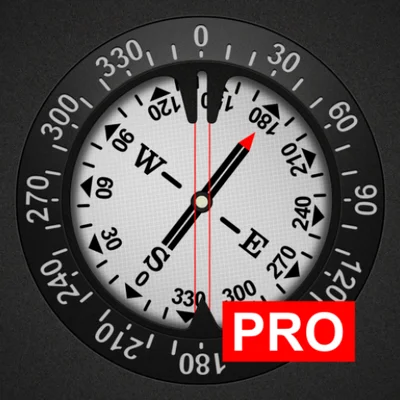
Primeiro vamos precisar para cobrir um pouco do jargão bússola primeiro. A parte de compasso que se move e aponta sempre para Norte chama-se a placa (com N, S, E, W e indicado, e uma borda chanfrada com uma série de números no mesmo). Existe um anel móvel em torno da borda da bússola, o chamado bisel. Uma linha vermelha dupla através da parte superior da bússola é chamado a linha de referência, e, finalmente, há uma pequena janela acima da bússola que é muitas vezes denominada como lado-janela (como é no lado de uma bússola real).
Navegação lateral-janela não poderia ser mais simples. Você aponta a linha de referência no topo da sua bússola para onde você quer ir. Agora, desde que você mantenha o seu plano bússola na frente de você com a linha de referência que aponta na direção que você está indo, você deve sempre ver o mesmo número em sua janela enquanto você está indo no caminho certo. Se você ver um número diferente, vire até ver o mesmo número.
A desvantagem do método de janela lateral é que você precisa se lembrar de seu número.
Navegando com moldura trabalha essencialmente o mesmo que usar a janela de lado, mas a sua luneta lembra o seu número para você. Tudo que você faz é, aponte a linha de referência no topo da sua bússola para onde você quer ir, e aguarde até que o cartão se acalma e pára de se mover. Em seguida, vire a sua luneta até o duplo triângulo na borda do painel (o entalhe direita pelo número zero da luneta) é Bracketing a seta norte no cartão. Agora, desde que você mantenha o seu plano bússola na frente de você com a linha de referência que aponta na direção que você está indo, você deve sempre ver a seta norte dentro do entalhe, desde que você está indo no caminho certo. Se não, vire até ver a seta norte dentro do entalhe.
Note que se você tiver ajustado o painel corretamente, o número na janela do lado também é o número em frente de você na extremidade frontal da linha de referência. Em outras palavras, se você virou o painel anti-horário até o entalhe entre colchetes a seta norte, a 120 sobre o painel seria na extremidade da linha de referência. Observe que no cartão, o número que mostra na janela do lado é 120. Se você estivesse segurando essa bússola e indo na direção da linha de referência, você estaria em um rumo de 120.
Agora você deve ter aprendido a ir para a direção desejada. Mas como fazê-lo de volta? Fácil! Se você está pensando em termos de moldura, basta girar até que a seta norte não enfrenta ao nível, mas para o único triângulo que é exatamente em frente ao entalhe. Agora você está apontado para trás de onde você veio.
A parte realmente complicada de usar a sua bússola não está aprendendo o que os números significam e como ajustar o painel. Os erros mais comuns não está segurando sua bússola plana, e não realmente indo na direção a sua linha de referência está apontando.
Objetos grandes de ferro e aço pode influenciar o sensor magnético no seu dispositivo Android, causando-lo para apontar na direção errada. Isto é chamado de desvio. Se você suspeita que isso está acontecendo, basta mover para longe do objeto de vários metros e que o problema deve se corrigir.
Mostrar o texto original
This is ad free (no ads) version of my compass: https://play.google.com/store/apps/details?id=com.gamma.compass
Compass is one of the most if not the most essential app every Android should have installed. Compass is the most precise compass app on Google Play. Compass app is compass in your pocket. Use it on camping trips, to navigate in unknown territory or when you get lost. You never know when it might come handy. It might even save your life one day!
Compass is easy to use; just use it like a real compass. Compass app is more than just showing degrees and north, south, east and west. I have designed Compass with user experience in mind, large numbers and easy to read design. Compass also allows you to set your directions by rotating the bezel for easier and professional navigation.
How to use?
First we’ll need to cover a little bit of compass jargon first. The part of Compass that moves and always points north is called the card (with N,S,E, and W indicated, and a beveled edge with a series of numbers on it). There is a movable ring around the edge of the compass, called the bezel. A red double line across the top of the compass is called the lubber line, and finally, there is a little window above the compass which is often named as side-window (as it is on the side of a real compass).
Side-window navigation couldn’t be simpler. You point the lubber line on top of your compass at where you want to go. Now as long as you hold your compass flat in front of you with the lubber line pointing in the direction you’re going, you should always see the same number in your window as long as you’re going the right way. If you see a different number, turn until you see the same number.
The downside of the side window method is that you need to remember your number.
Navigating with bezel works essentially the same as using the side window, but your bezel remembers your number for you. All you do is, point the lubber line on top of your compass at where you want to go, and then wait until the card settles down and stops moving. Then turn your bezel until the double triangle on the edge of the bezel (the notch right by the number zero on the bezel) is bracketing the north arrow on the card. Now as long as you hold your compass flat in front of you with the lubber line pointing in the direction you’re going, you should always see the north arrow inside the notch, as long as you’re going the right way. If not, turn until you see the north arrow inside the notch.
Notice that if you’ve adjusted the bezel correctly, the number in the side window is also the number directly across from you at the front end of the lubber line. In other words, if you turned the bezel counterclockwise until the notch bracketed the north arrow, the 120 on the bezel would be at the far end of the lubber line. Notice that on the card, the number showing in the side window is 120. If you were holding this compass and going in the direction of the lubber line, you’d be on a heading of 120.
Now you should have learned how to go to desired direction. But how do you get back? Easy! If you’re thinking in terms of the bezel, simply turn until the north arrow faces not to the notch, but to the single triangle that’s exactly across from the notch. Now you’re pointed back where you came.
The really tricky part of using your compass isn’t learning what the numbers mean and how to adjust the bezel. The most common mistakes are not holding your compass flat, and not actually going in the direction your lubber line is pointing.
Large iron and steel objects can influence the magnetic sensor in your Android device, causing it to point in the wrong direction. This is called deviation. If you suspect this is happening, simply move away from the object several feet and the problem should correct itself.
Segurança dos dados
O que Gamma Play declara na Google Play sobre os dados que este app coleta e compartilha.
- Os dados não são compartilhados com terceirosSaiba mais sobre como os desenvolvedores declaram o compartilhamento
- Nenhum dado foi coletadoSaiba mais sobre como os desenvolvedores declaram a coleta
Novidades
Versão 3.9 · 21/08/2025
Thanks for using Compass PRO! We bring updates to Google Play regularly to constantly improve speed, reliability, performance and fix bugs.
Contato do desenvolvedor
- E-mailgammaplay.com@gmail.com
- Política de privacidadegammaplay.com
- EndereçoRm 1203 12/F China Hong Kong City Twr 3 33 Canton Rd 尖沙咀 九龍 Hong Kong
Informações
- Oferecido por
- Gamma Play
- Categoria
- Ferramentas
- Versão
- 3.9
- Atualizado
- 21/08/2025
- Lançamento
- 10/03/2015
- Requer
- Android 6.0 ou posterior
- Classificação etária
- Classificação Livre
- Preço
- R$ 6,99
- Nome do pacote
- com.gamma.compass2