C-Mirroring
CASIO COMPUTER CO., LTD.- EveryoneAge rating
- ProductivityCategory
- Apr 6, 2023Updated
- FreePrice
Links to the official Google Play listing of com.casio.c_mirroring. Last checked on Nov 14, 2026.

Screenshots

About this app
Wireless operation for smooth meetings and presentations.
CASIO C-Mirroring is an Android app that makes it possible to establish a network connection between an Android terminal device and network-compatible CASIO Projector *1, and perform mirroring projection of the Android terminal screen, image projection in the terminal, and browser projection.
(*1)Applicable Projector Models:
Models 1(*2):
XJ-A147, XJ-A247, XJ-A257
XJ-M146, XJ-M156, XJ-M246, XJ-M256
XJ-UT310WN, XJ-UT311WN, XJ-UT351WN
XJ-F20XN, XJ-F200WN, XJ-F210WN
Models 2:
XJ-S400UN/S400WN
XJ-UT352WN
XJ-F211WN/XJ-F21XN
(Some models covered by this app may not be available in certain geographic areas.)
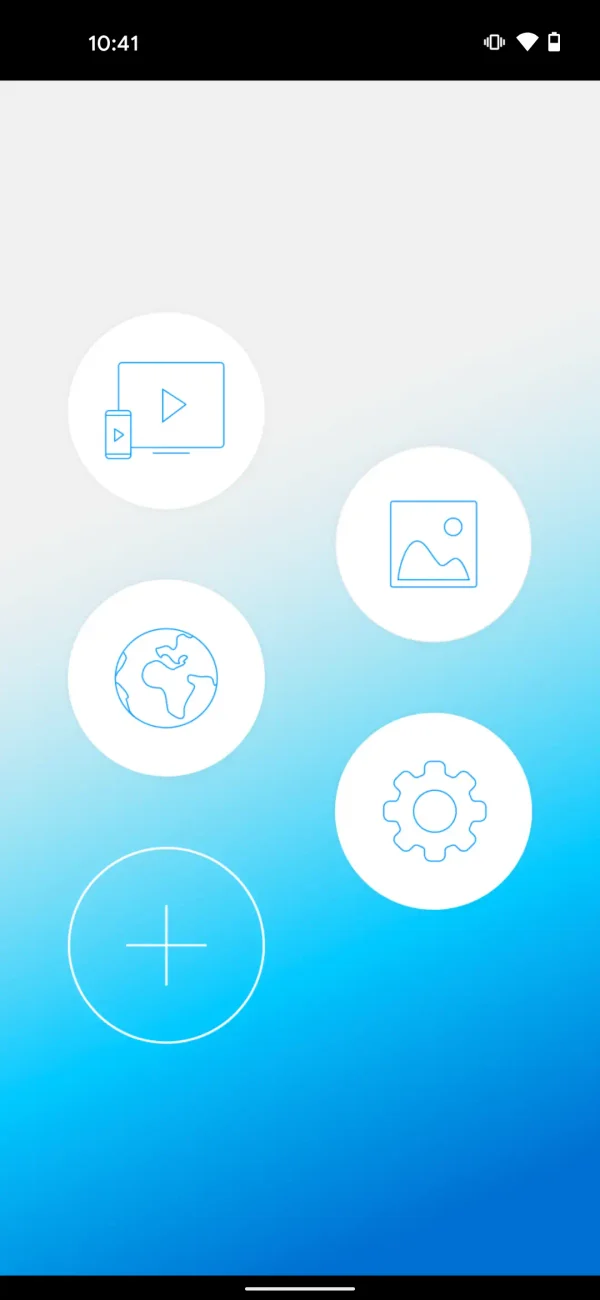
・Screen Mirroring:
Projects the smart device screen with the projector.
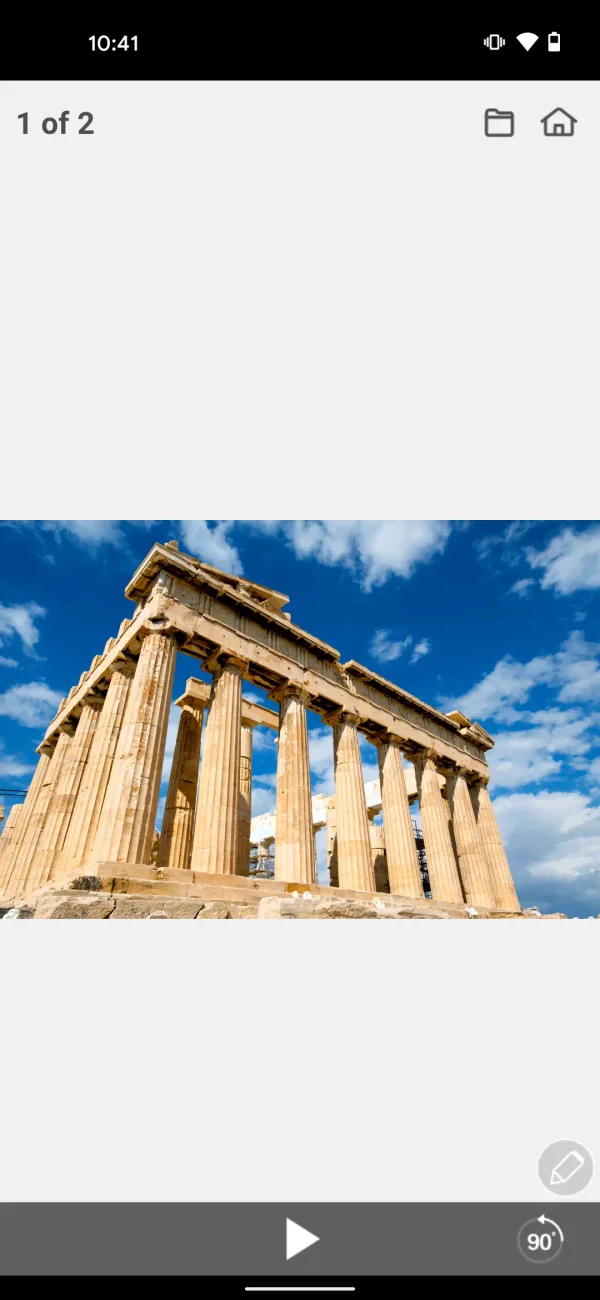
・Photo:
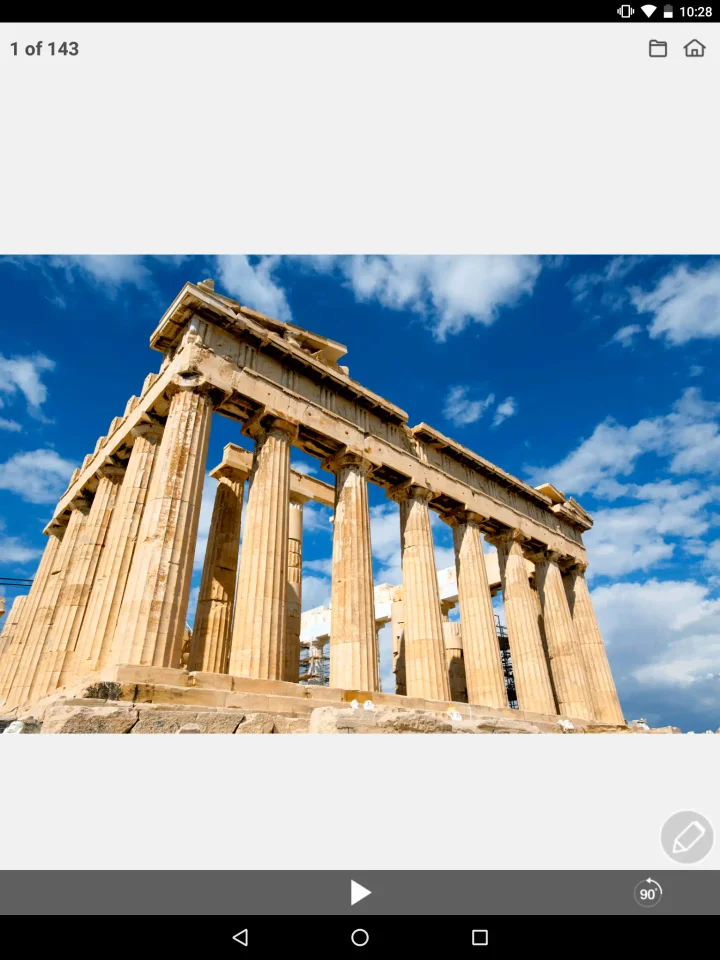
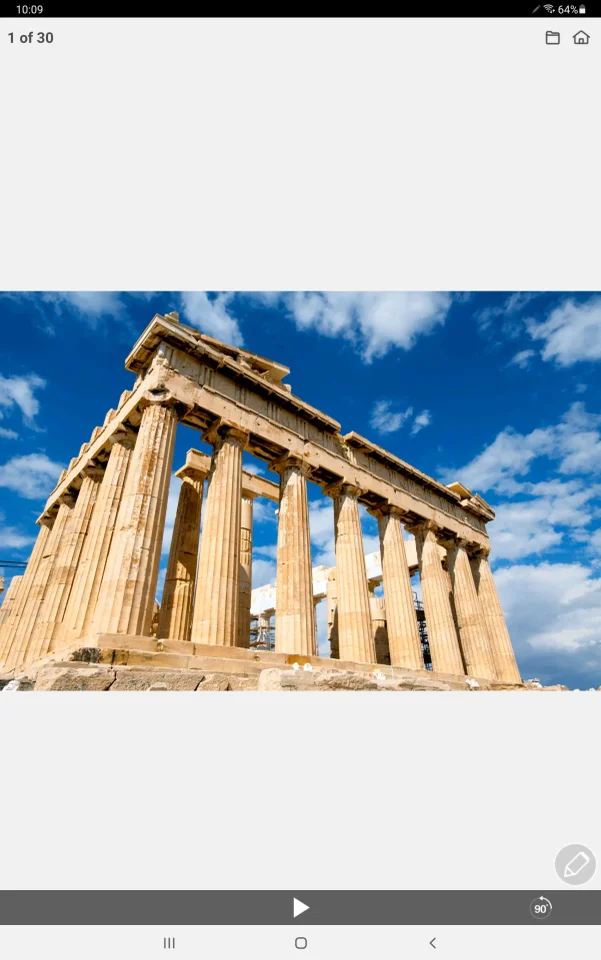
Projects smart device images (JPEG, PNG) with the projector.
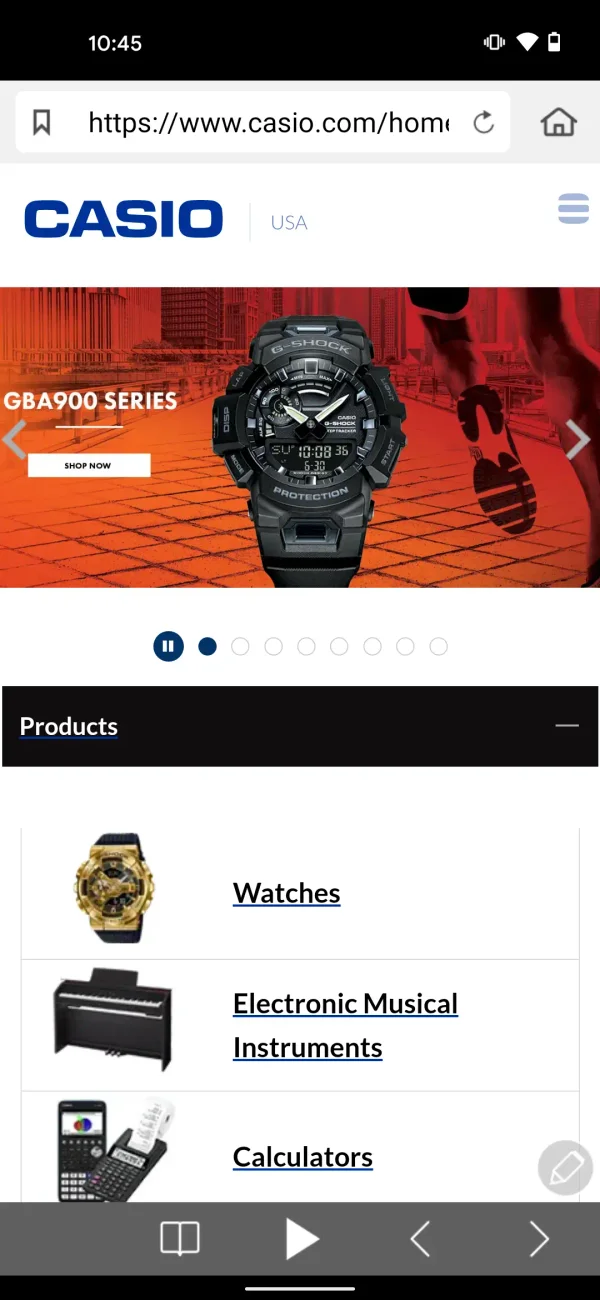
・Browser:
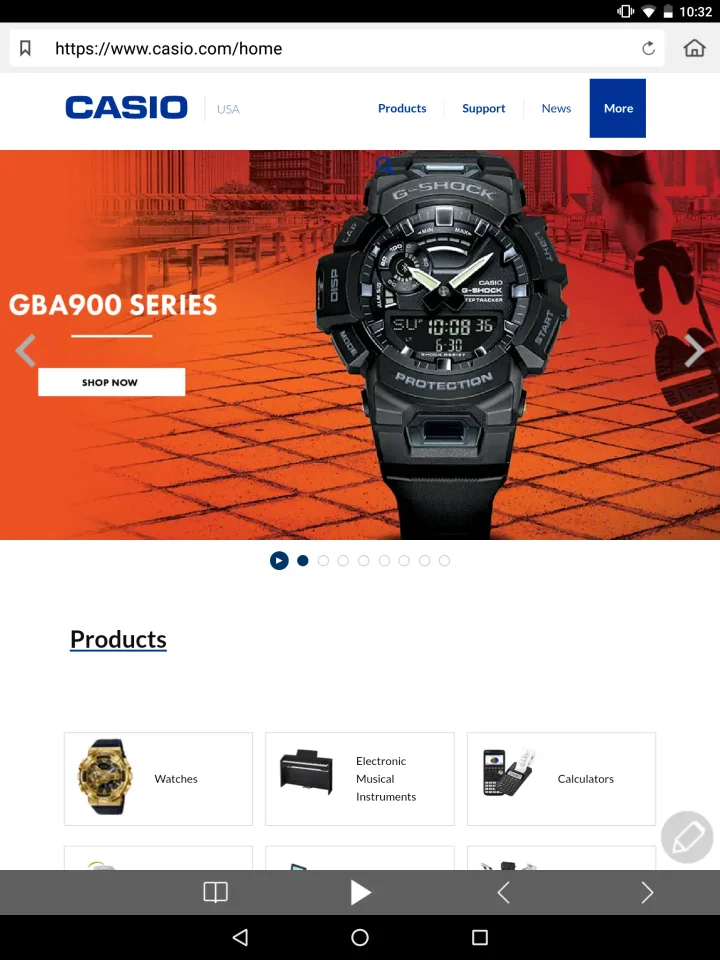
Uses the application's built-in web browser to project web pages with the projector.
Using CASIO C-Mirroring
Use the steps below to establish a connection between a smart device and projector with this app.
If you are already connected via a wireless LAN access point, refer to your projector's Network Function Guide.
(1) Configure projector network settings.
If applicable models 1(*2) and establishing a direct wireless LAN connection between the projector and computer, use the projector's "Network Settings" - "Wireless LAN Settings of this unit" menu item to change the SSID of the projector to a general-purpose SSID (casiolpj0101, casiolpj0102, casiolpj0103, casiolpj0104) or to the user SSID.
(2) Switch the input source of the projector to "Network" ("Wireless" for an XJ-A Series projector).
This projects the standby screen, which shows network information.
(3) On the smart device, select the desired access point with "Settings" - "Wi-Fi" and establish a connection.
(4) Start up CASIO C-Mirroring.
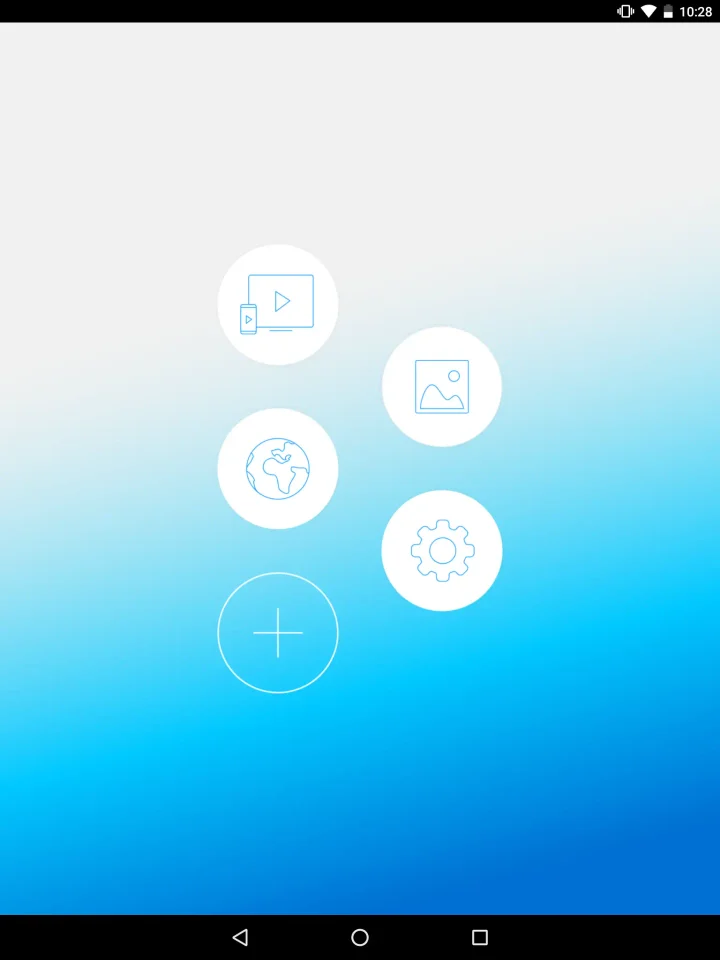
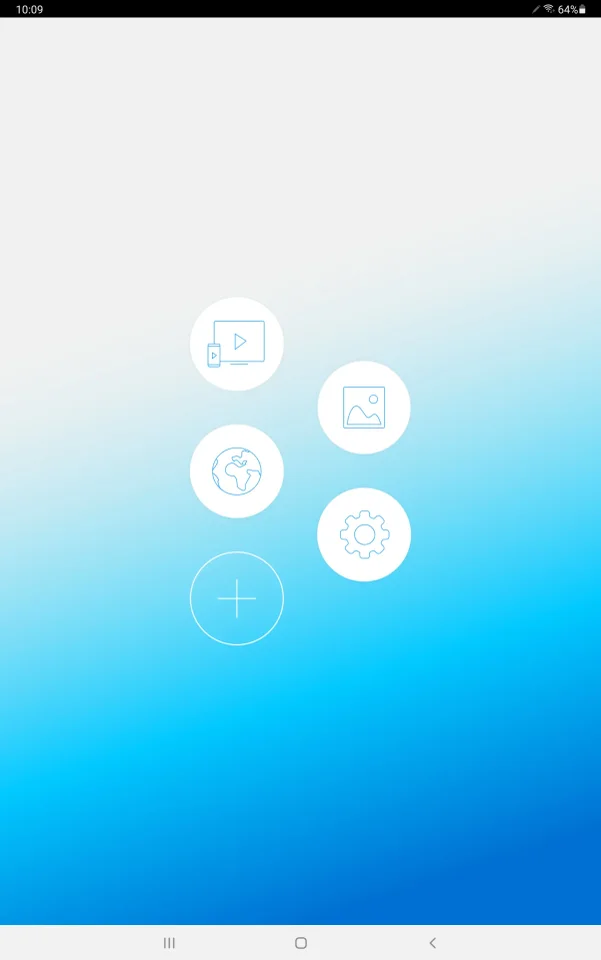
(5) On the home screen, select the function you want and execute it.
(6) When you want to project with the projector, tap the Play button. When a connectable projector is found, select it. If a connectable projector isn't found, input IP address of the projector then connect to it.
Data safety
What CASIO COMPUTER CO., LTD. declares on Google Play about the data this app collects and shares.
- No data shared with third partiesLearn more about how developers declare sharing
- No data collectedLearn more about how developers declare collection
What’s new
Version 1.1.0.0 · Apr 6, 2023
Minor bugs have been fixed.
Developer contact
- Websiteworld.casio.com
- Emailapp4+c-mirroring@casio.co.jp
- Privacy policyworld.casio.com
- Address1-6-2, HONMACHI SHIBUYA-KU, 東京都 151-8543 Japan
Information
- Offered by
- Google Commerce Ltd
- Category
- Productivity
- Version
- 1.1.0.0
- Updated
- Apr 6, 2023
- Released
- Jul 12, 2021
- Requires
- Android 9 or later
- Age rating
- Everyone
- Price
- Free
- Package name
- com.casio.c_mirroring