C-Mirroring
CASIO COMPUTER CO., LTD.- Rating 3+Batasan usia
- ProduktivitasKategori
- 6/4/2023Diperbarui
- GratisHarga
Tertaut ke halaman resmi com.casio.c_mirroring di Google Play. Terakhir diperiksa pada 14/11/2026.

Tangkapan layar


Tentang aplikasi ini
Terjemahan otomatis oleh Google. Bahasa asli: Inggris (Amerika Serikat).
Pengoperasian nirkabel untuk rapat dan presentasi yang lancar.
CASIO C-Mirroring adalah aplikasi Android yang memungkinkan untuk membuat koneksi jaringan antara perangkat terminal Android dan Proyektor CASIO yang kompatibel dengan jaringan *1, dan melakukan proyeksi pencerminan layar terminal Android, proyeksi gambar di terminal, dan proyeksi browser .
(*1)Model Proyektor yang Berlaku:
Model 1(*2):
XJ-A147, XJ-A247, XJ-A257
XJ-M146, XJ-M156, XJ-M246, XJ-M256
XJ-UT310WN, XJ-UT311WN, XJ-UT351WN
XJ-F20XN, XJ-F200WN, XJ-F210WN
Model 2:
XJ-S400UN/S400WN
XJ-UT352WN
XJ-F211WN/XJ-F21XN
(Beberapa model yang dicakup oleh aplikasi ini mungkin tidak tersedia di wilayah geografis tertentu.)
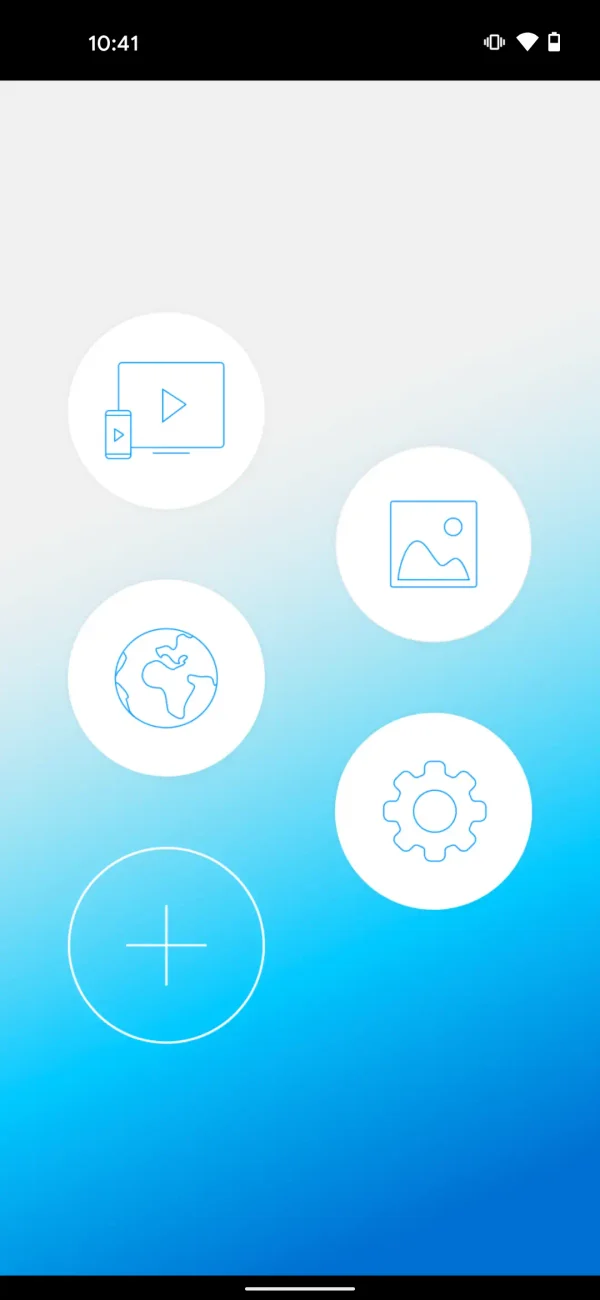
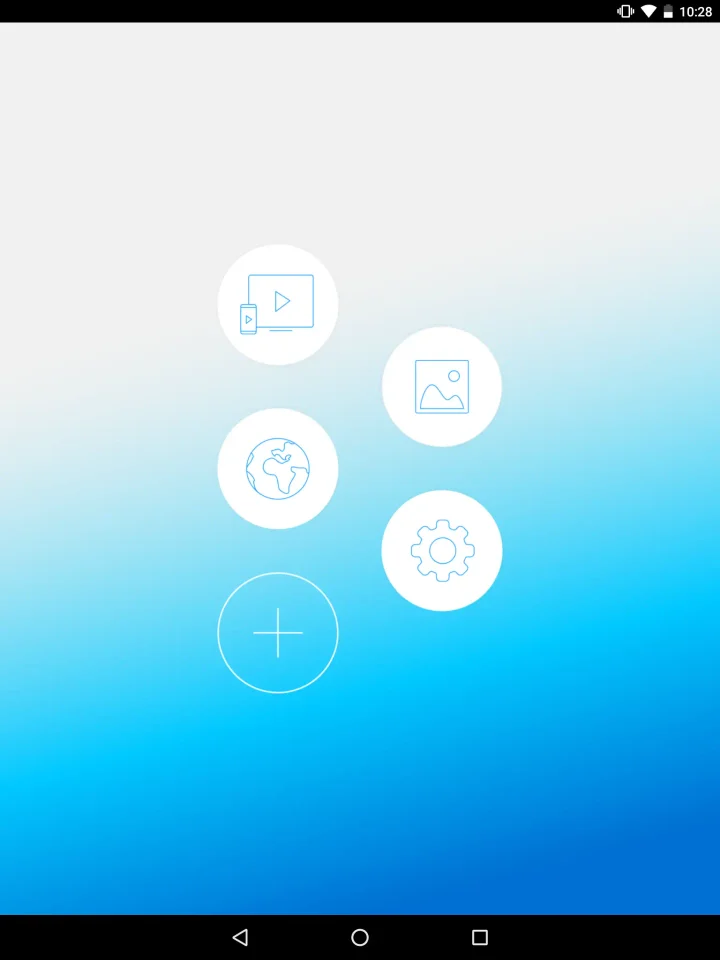
・ Pencerminan Layar :
Memproyeksikan layar perangkat pintar dengan proyektor.
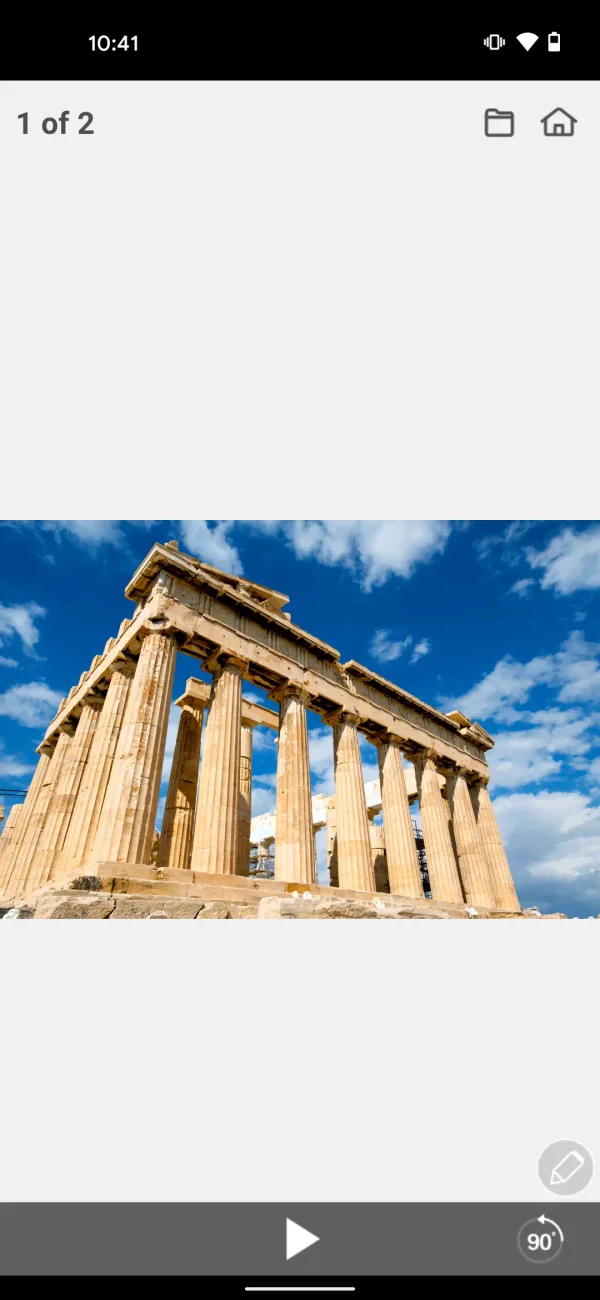
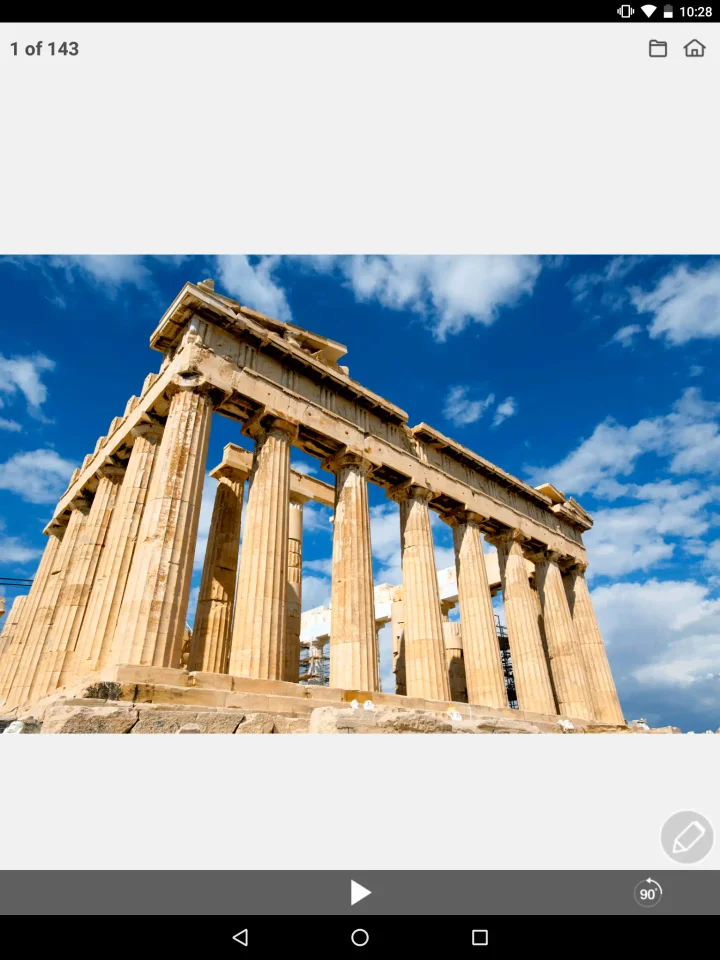
·Foto:
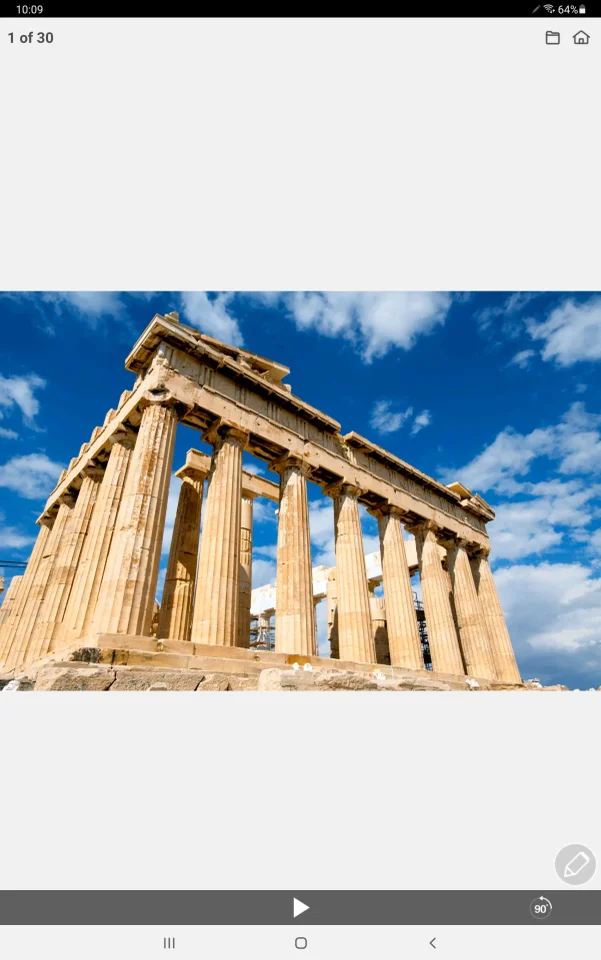
Memproyeksikan gambar perangkat pintar (JPEG, PNG) dengan proyektor.
・Peramban:
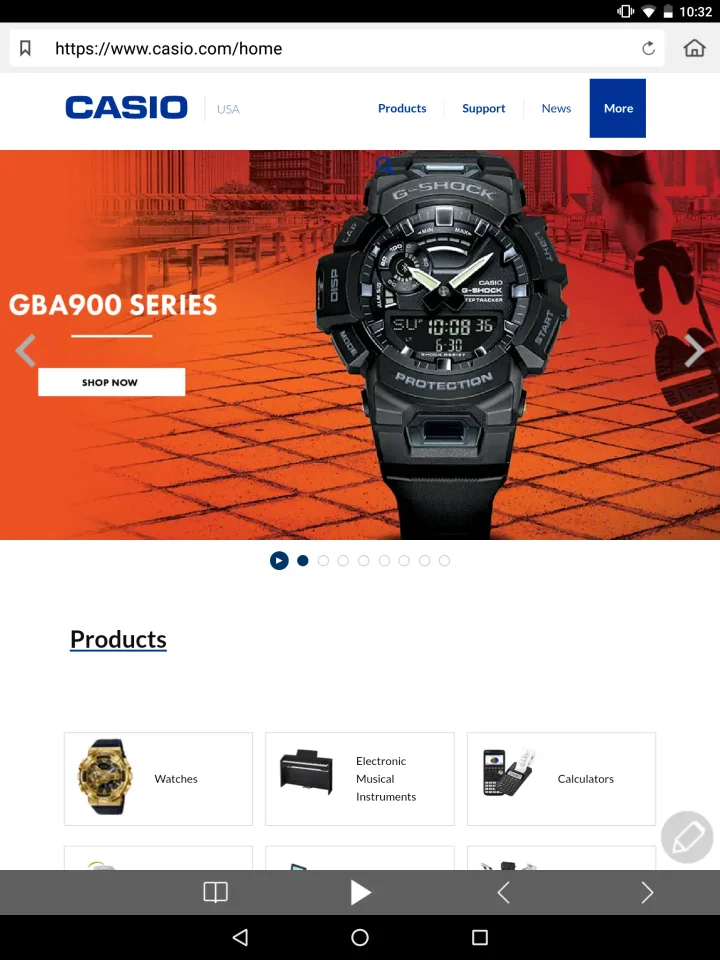
Menggunakan browser web bawaan aplikasi untuk memproyeksikan halaman web dengan proyektor.
Menggunakan CASIO C-Mirroring
Gunakan langkah-langkah di bawah ini untuk membuat sambungan antara perangkat pintar dan proyektor dengan aplikasi ini.
Jika Anda sudah terhubung melalui titik akses LAN nirkabel, lihat Panduan Fungsi Jaringan proyektor Anda.
(1) Konfigurasikan pengaturan jaringan proyektor.
Jika berlaku model 1(*2) dan membuat sambungan LAN nirkabel langsung antara proyektor dan komputer, gunakan item menu "Pengaturan Jaringan" - "Pengaturan LAN Nirkabel unit ini" proyektor untuk mengubah SSID proyektor menjadi umum- SSID tujuan (casiolpj0101, casiolpj0102, casiolpj0103, casiolpj0104) atau ke SSID pengguna.
(2) Alihkan sumber input proyektor ke "Jaringan" ("Nirkabel" untuk proyektor Seri XJ-A).
Ini memproyeksikan layar siaga, yang menampilkan informasi jaringan.
(3) Pada perangkat pintar, pilih titik akses yang diinginkan dengan "Pengaturan" - "Wi-Fi" dan buat sambungan.
(4) Nyalakan CASIO C-Mirroring.
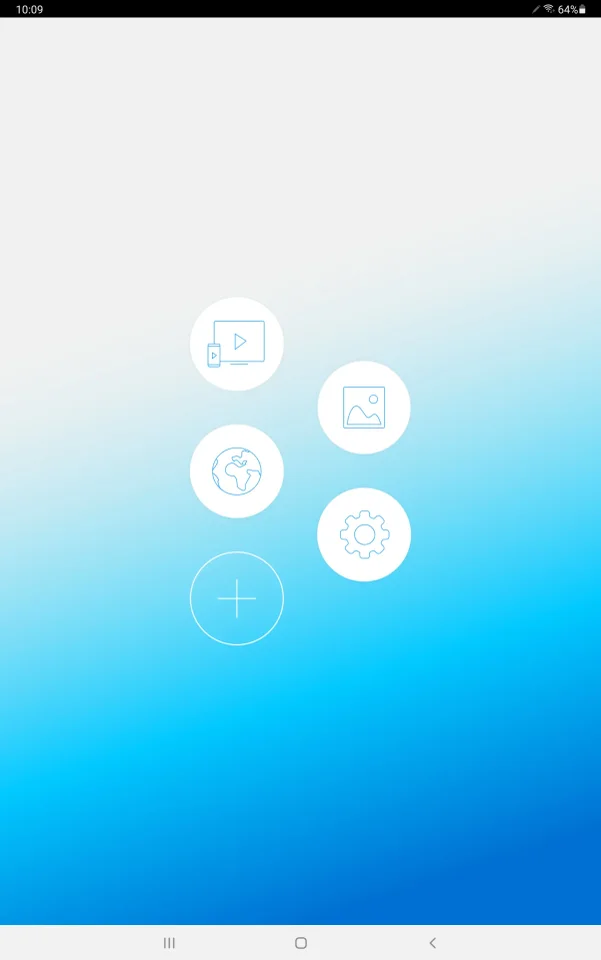
(5) Di layar beranda, pilih fungsi yang Anda inginkan dan jalankan.
(6) Saat Anda ingin memproyeksikan dengan proyektor, ketuk tombol Putar. Saat proyektor yang dapat dihubungkan ditemukan, pilih proyektor tersebut. Jika proyektor yang dapat disambungkan tidak ditemukan, masukkan alamat IP proyektor, lalu sambungkan ke proyektor tersebut.
Tampilkan teks asli
CASIO C-Mirroring is an Android app that makes it possible to establish a network connection between an Android terminal device and network-compatible CASIO Projector *1, and perform mirroring projection of the Android terminal screen, image projection in the terminal, and browser projection.
(*1)Applicable Projector Models:
Models 1(*2):
XJ-A147, XJ-A247, XJ-A257
XJ-M146, XJ-M156, XJ-M246, XJ-M256
XJ-UT310WN, XJ-UT311WN, XJ-UT351WN
XJ-F20XN, XJ-F200WN, XJ-F210WN
Models 2:
XJ-S400UN/S400WN
XJ-UT352WN
XJ-F211WN/XJ-F21XN
(Some models covered by this app may not be available in certain geographic areas.)
・Screen Mirroring:
Projects the smart device screen with the projector.
・Photo:
Projects smart device images (JPEG, PNG) with the projector.
・Browser:
Uses the application's built-in web browser to project web pages with the projector.
Using CASIO C-Mirroring
Use the steps below to establish a connection between a smart device and projector with this app.
If you are already connected via a wireless LAN access point, refer to your projector's Network Function Guide.
(1) Configure projector network settings.
If applicable models 1(*2) and establishing a direct wireless LAN connection between the projector and computer, use the projector's "Network Settings" - "Wireless LAN Settings of this unit" menu item to change the SSID of the projector to a general-purpose SSID (casiolpj0101, casiolpj0102, casiolpj0103, casiolpj0104) or to the user SSID.
(2) Switch the input source of the projector to "Network" ("Wireless" for an XJ-A Series projector).
This projects the standby screen, which shows network information.
(3) On the smart device, select the desired access point with "Settings" - "Wi-Fi" and establish a connection.
(4) Start up CASIO C-Mirroring.
(5) On the home screen, select the function you want and execute it.
(6) When you want to project with the projector, tap the Play button. When a connectable projector is found, select it. If a connectable projector isn't found, input IP address of the projector then connect to it.
Keamanan data
Yang dinyatakan CASIO COMPUTER CO., LTD. di Google Play tentang data yang dikumpulkan dan dibagikan aplikasi ini.
- Tidak ada data yang dibagikan kepada pihak ketigaPelajari lebih lanjut cara developer menyatakan pembagian data
- Tidak ada data yang dikumpulkanPelajari lebih lanjut cara developer menyatakan pengumpulan data
Yang baru
Versi 1.1.0.0 · 6/4/2023
Minor bugs have been fixed.
Kontak pengembang
- Situs webworld.casio.com
- Emailapp4+c-mirroring@casio.co.jp
- Kebijakan Privasiworld.casio.com
- Alamat1-6-2, HONMACHI SHIBUYA-KU, 東京都 151-8543 Japan
Informasi
- Ditawarkan oleh
- Google Commerce Ltd
- Kategori
- Produktivitas
- Versi
- 1.1.0.0
- Diperbarui
- 6/4/2023
- Dirilis
- 12/7/2021
- Memerlukan
- Android 9 atau yang lebih baru
- Batasan usia
- Rating 3+
- Harga
- Gratis
- Nama paket
- com.casio.c_mirroring