Samsung Notes
Samsung Electronics Co., Ltd.- PEGI 3Clasificación por edad
- ProductividadCategoría
- 23/9/2025Actualizado
- GratisPrecio
Enlaza a la ficha oficial de com.samsung.android.app.notes en Google Play. Última comprobación el 19/11/2026.

Capturas de pantalla
Acerca de esta aplicación
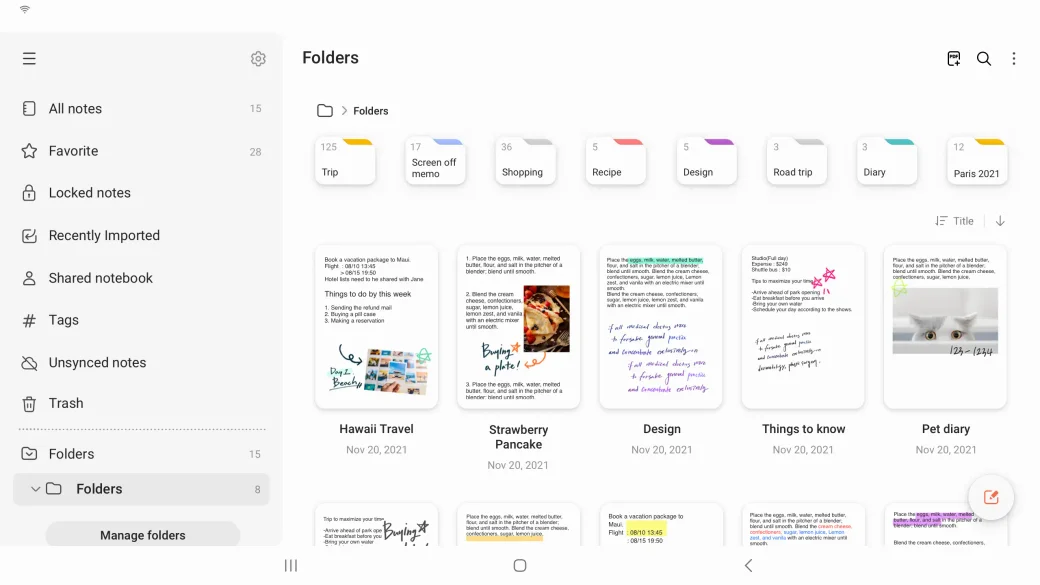
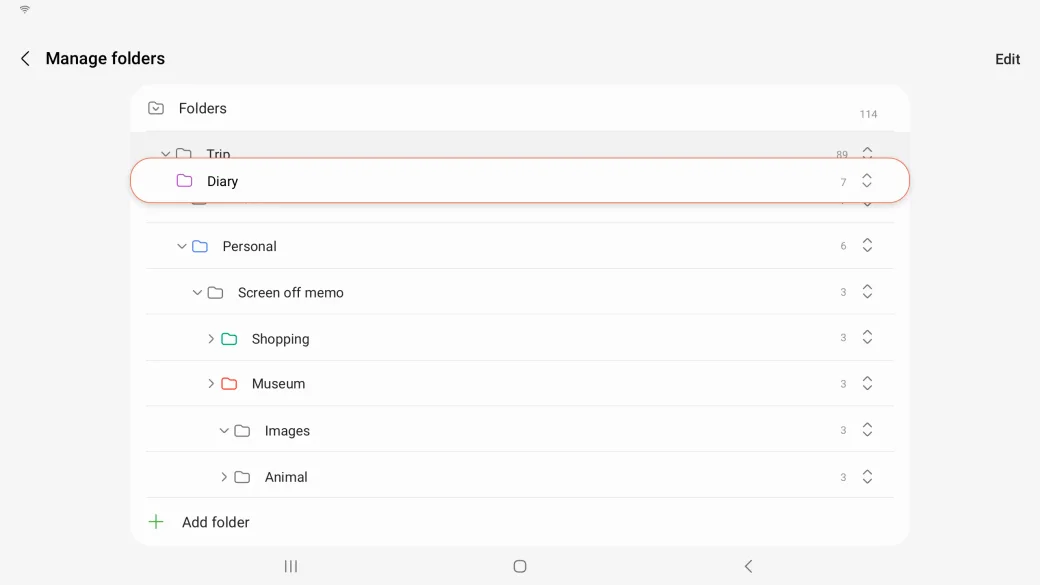
Samsung Notes te permite guardar tus notas y realizar dibujos gracias al S Pen
With Samsung Notes,
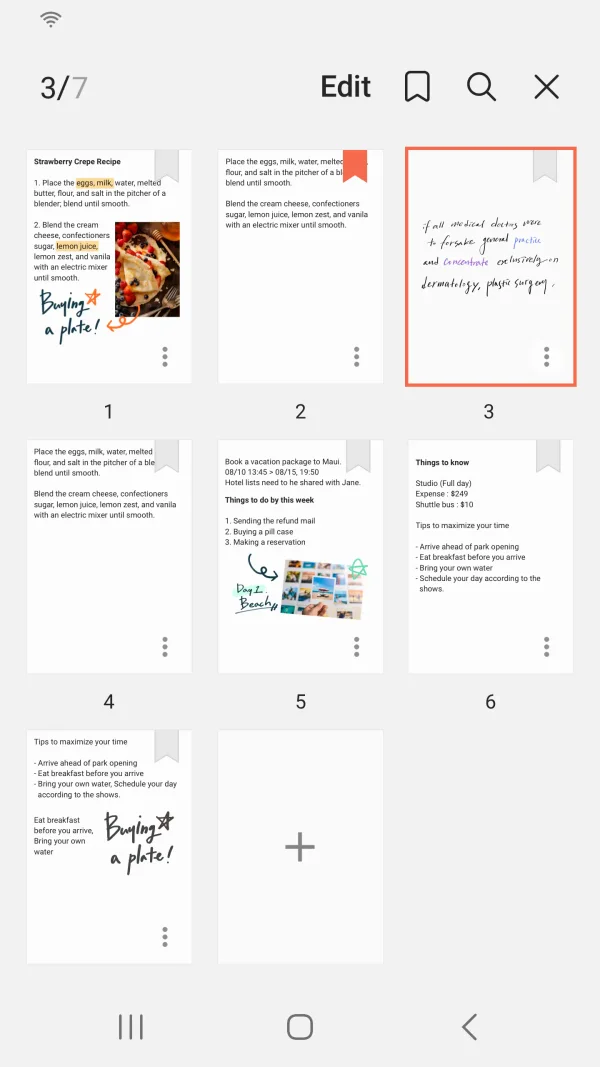
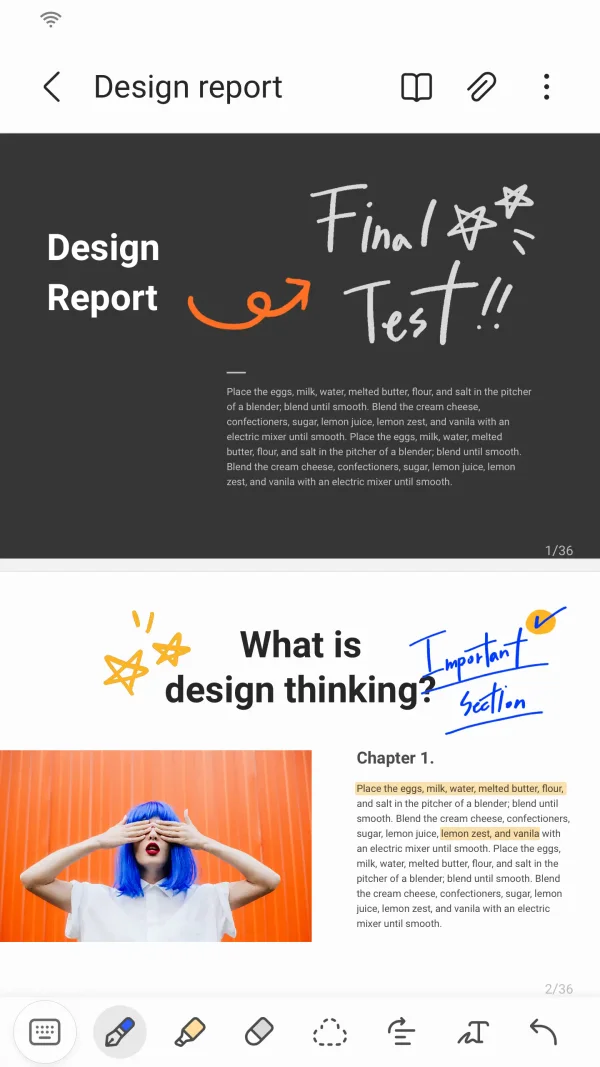
you can create notes containing texts, images with footnotes, voice recordings, and music.
Moreover, you can share your notes easily to SNS.
Previously made any memos from S Note and Memo also can be imported into Samsung Notes.
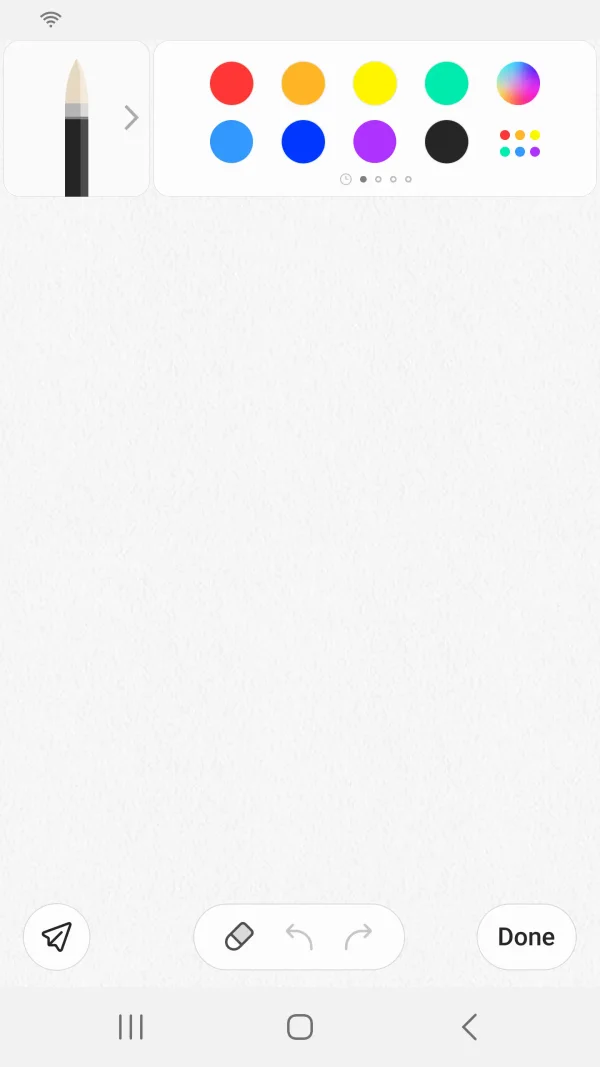
Samsung Notes provides various brush types and color mixers, so that you can draw fabulous paintings like professional painters.
You may also share your paintings at PEN.UP right away.
Samsung Notes is a hub for all your hand-written notes, sketches, drawings.
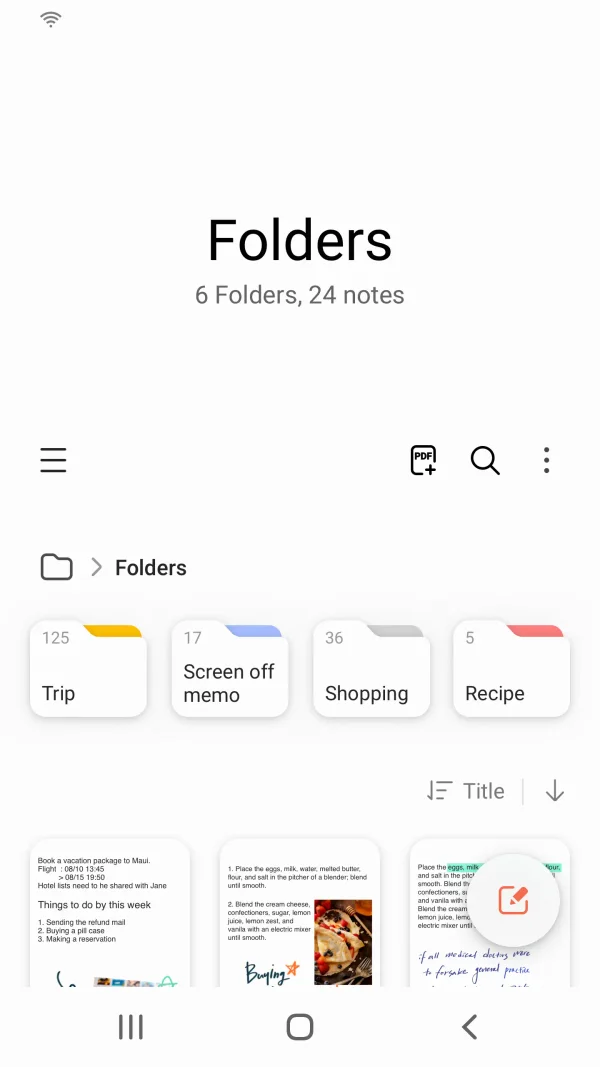
Creating notes
Tap + icon at the bottom of the main screen of Samsung Notes to create notes.
Locking notes
1.Tap the More options button on the main screen of Samsung Notes, select Settings,
then select Lock notes to create a password.
2.Create a password, then tap the note you want to lock.
3.Tap the More options button while viewing a note, then select Lock.
Adding text
Tap keyboard icon at the top of the screen to enter text using the keyboard.
Use the Rich text toolbar to edit the style of the text.
Adding handwriting
Tap Handwriting icon at the top of the screen to add handwriting.
Handwritten text can be recognised. You can also use handwriting to search for keywords in notes.
Adding drawings
Tap drawing icon at the top of the screen to create drawings.
Adding image and voice recordings
Tap image icon at the top of the screen to insert images.
Tap Voice recording icon at the top of the screen to insert voice recordings.
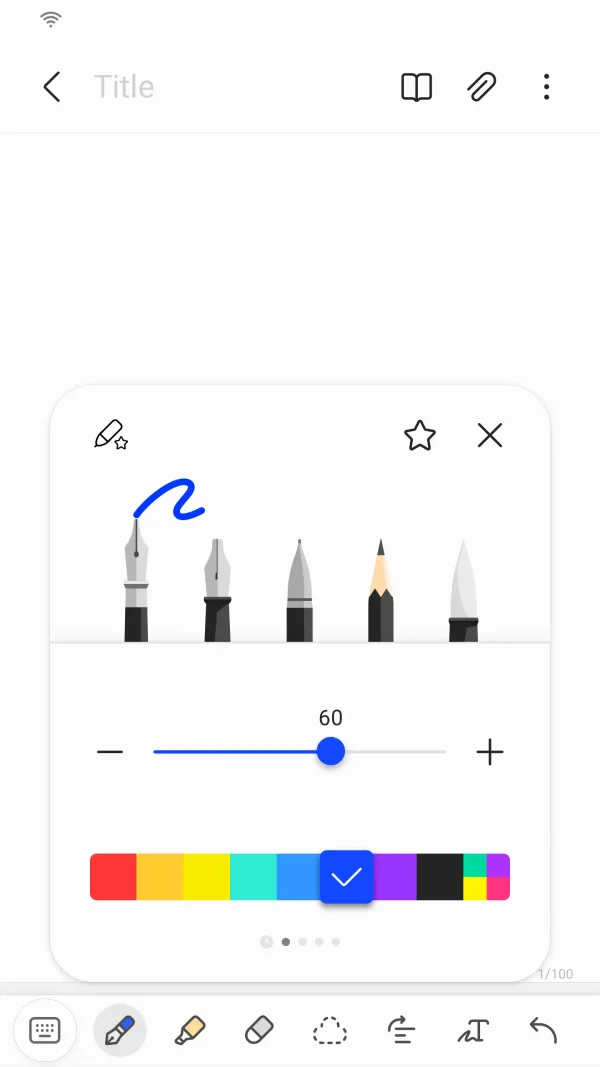
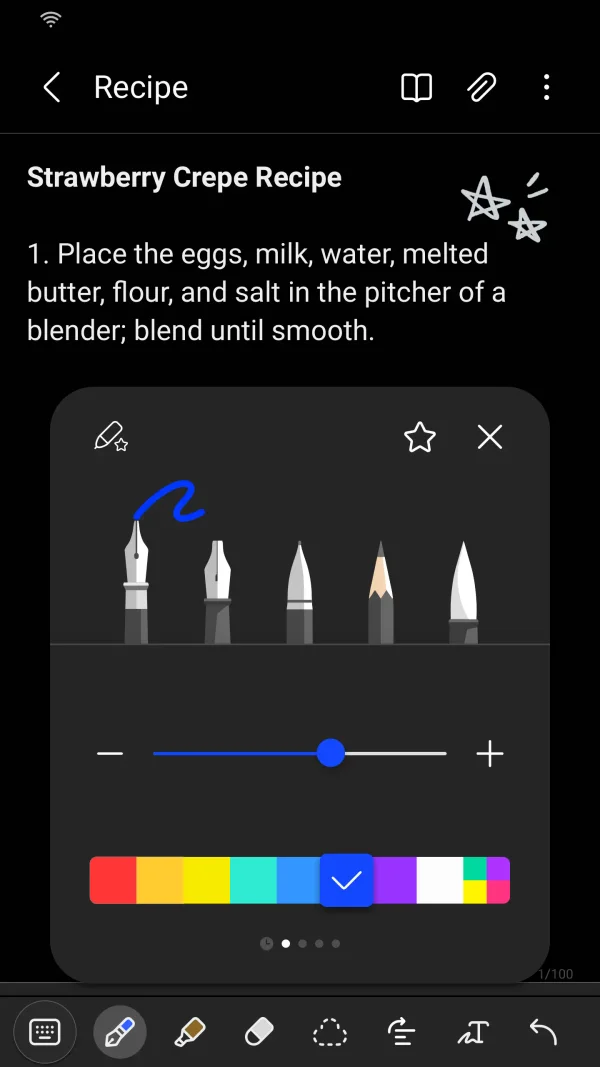
Using pen settings
Select from various pen types, sizes, and colours.
Erasing handwriting
Tap eraser icon at the bottom of the screen, then tap or swipe your finger over the handwriting you want to erase.
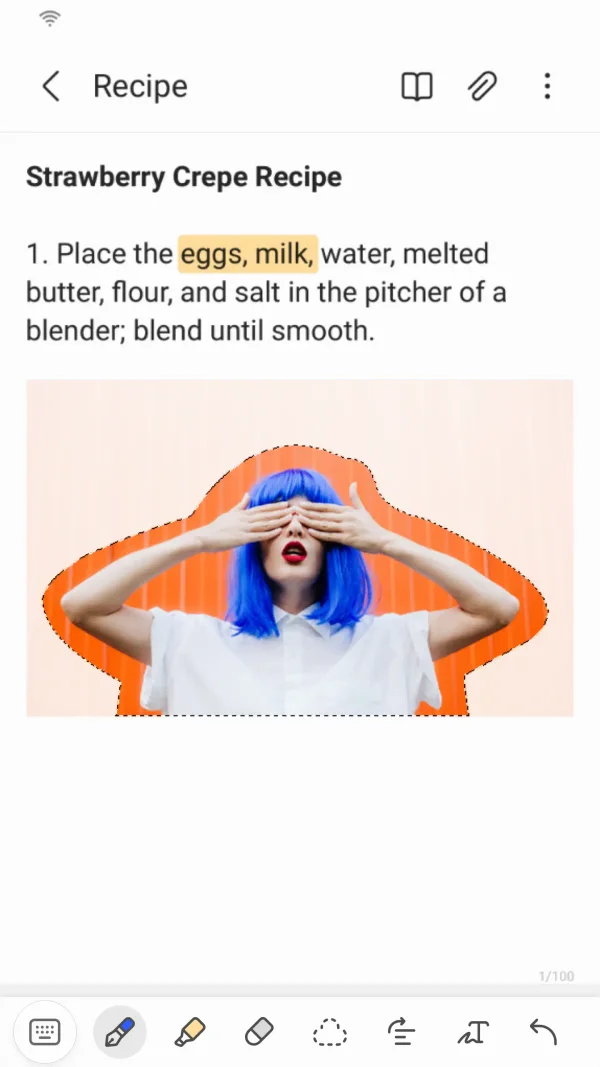
Using Selection mode
Tap selection icon at the bottom of the screen, then select an area of handwriting.
You can then move the selected area, adjust its size, and more.
Using brush settings
Select from various brush types and colours.
Tap the selected brush to view the brush settings again and change more settings such as the size and opacity.
Tap color icon, then select the colour you want to draw with.
Using Smart Switch.
Use Smart Switch to import S Note and Memo data from other devices.
Using Samsung account.
1.Tap the More options button while on the main screen of Samsung Notes, select Settings, then select Import data.
2.Select S Note or Memo data saved using your Samsung account, then tap the DONE button.
Syncing notes via Samsung Cloud
1.Tap the More options button while on the main screen of Samsung Notes, select Settings,
then select Sync with Samsung Cloud.
2.Register with or sign in to Samsung Cloud using your Samsung account.
Samsung Notes data will be synced automatically.
Creating notes while screen off
Detach the S Pen while the screen is turned off to create screen off memos.
Seguridad de los datos
Lo que Samsung Electronics Co., Ltd. declara en Google Play sobre los datos que esta aplicación recopila y comparte.
- No se comparten datos con tercerosMás información sobre cómo los desarrolladores declaran lo que comparten
- No se recogen datosMás información sobre cómo los desarrolladores declaran lo que recogen
Novedades
23/9/2025
• Bug fixed
Contacto del desarrollador
- Correo electróniconoreply.sec@samsung.com
- Política de privacidadaccount.samsung.com
- Dirección대한민국 16677 경기도 수원시 영통구 삼성로 129 (매탄동)
Información
- Ofrecida por
- Samsung Electronics Co., Ltd.
- Categoría
- Productividad
- Actualizado
- 23/9/2025
- Publicado
- 16/8/2016
- Clasificación por edad
- PEGI 3
- Precio
- Gratis
- Nombre del paquete
- com.samsung.android.app.notes
Aplicaciones similares
-
 Notas, Bloc de notas - Notein
Productividad
-
 Bloc de notas - notas simples
Productividad
-
 Navegador Mi - Rápido y seguro
Herramientas
-
 Calendario de Samsung
Productividad
-
 Reloj
Herramientas
-
 Samsung Calculator
Herramientas
-
 Samsung Browser
Comunicación
-
 Notas: Bloc de notas, Notebook
Productividad
-
 ColorNote Bloc de notas Notas
Productividad
-
 Mis archivos
Herramientas
-
 Voice Recorder
Herramientas
-
 Calculadora Sencilla
Herramientas