Samsung Notes
Samsung Electronics Co., Ltd.- 3 歳以上対象年齢
- 仕事効率化カテゴリ
- 2025/9/23更新日
- 無料価格
com.samsung.android.app.notesのGoogle Play公式ページにリンクしています。最終確認:2026/11/19。

スクリーンショット
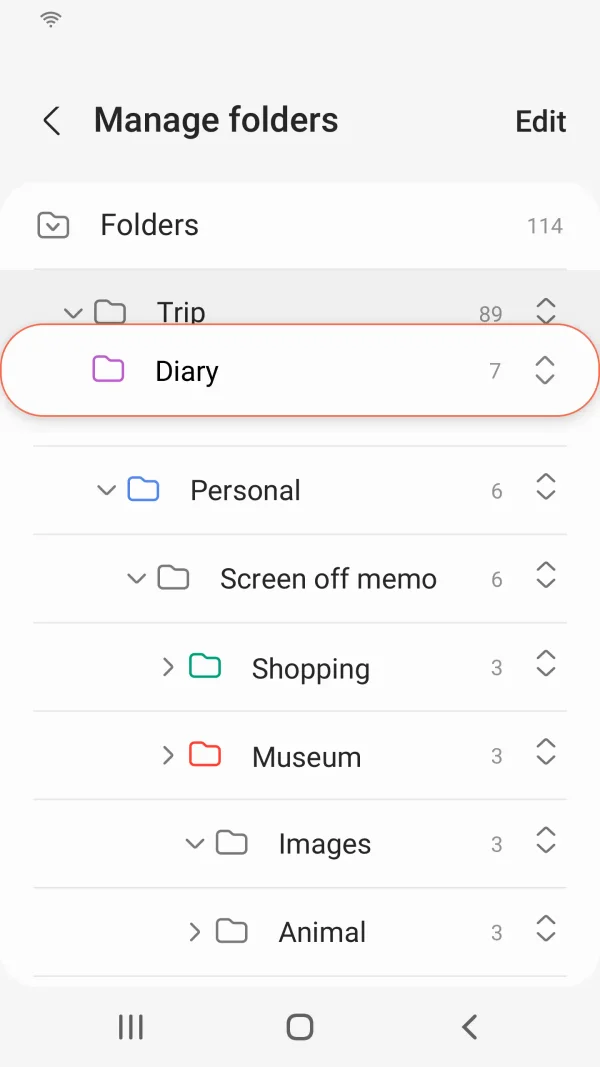
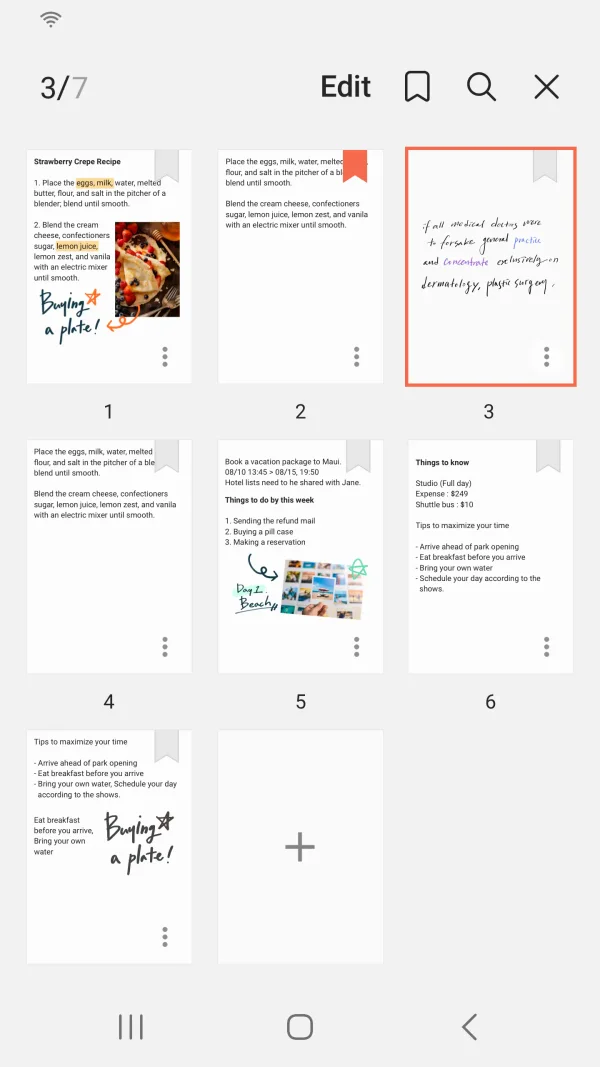
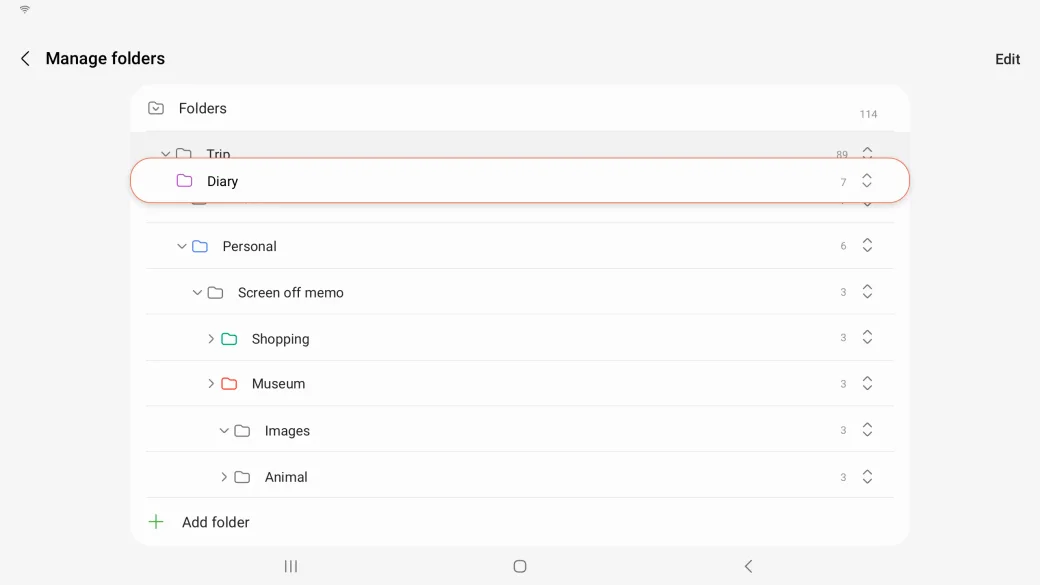
このアプリについて
Samsung Notes allows you to memo nicely and draw fabulous paintings with a S Pen
With Samsung Notes,
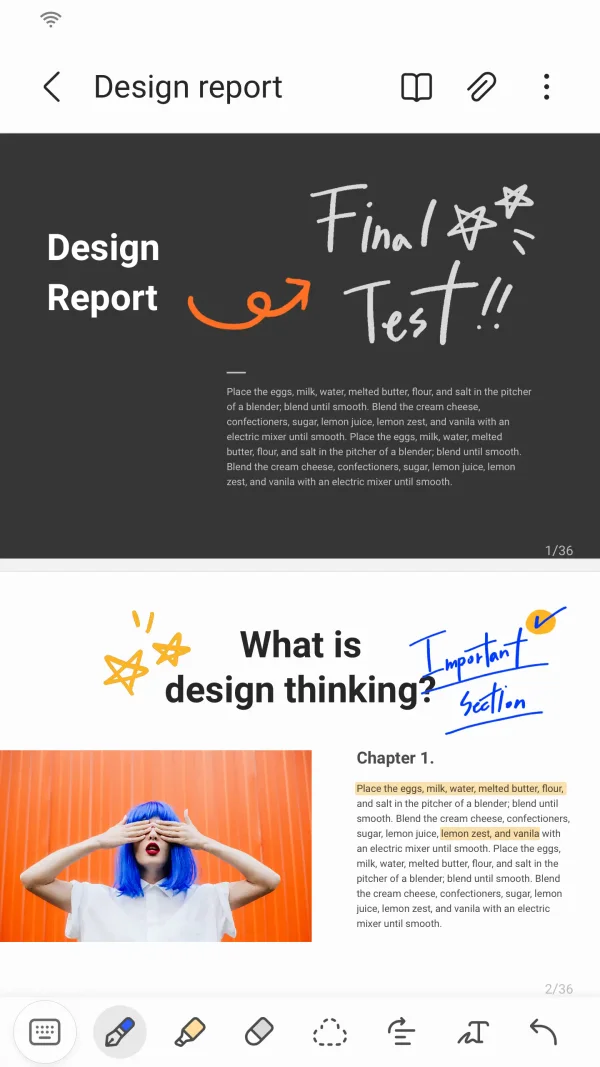
you can create notes containing texts, images with footnotes, voice recordings, and music.
Moreover, you can share your notes easily to SNS.
Previously made any memos from S Note and Memo also can be imported into Samsung Notes.
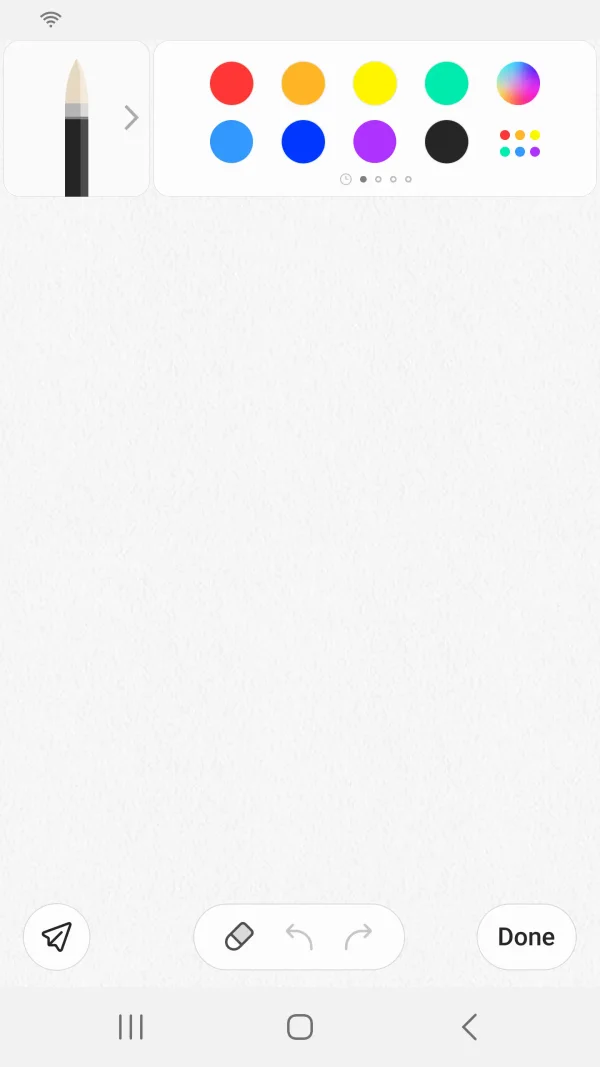
Samsung Notes provides various brush types and color mixers, so that you can draw fabulous paintings like professional painters.
You may also share your paintings at PEN.UP right away.
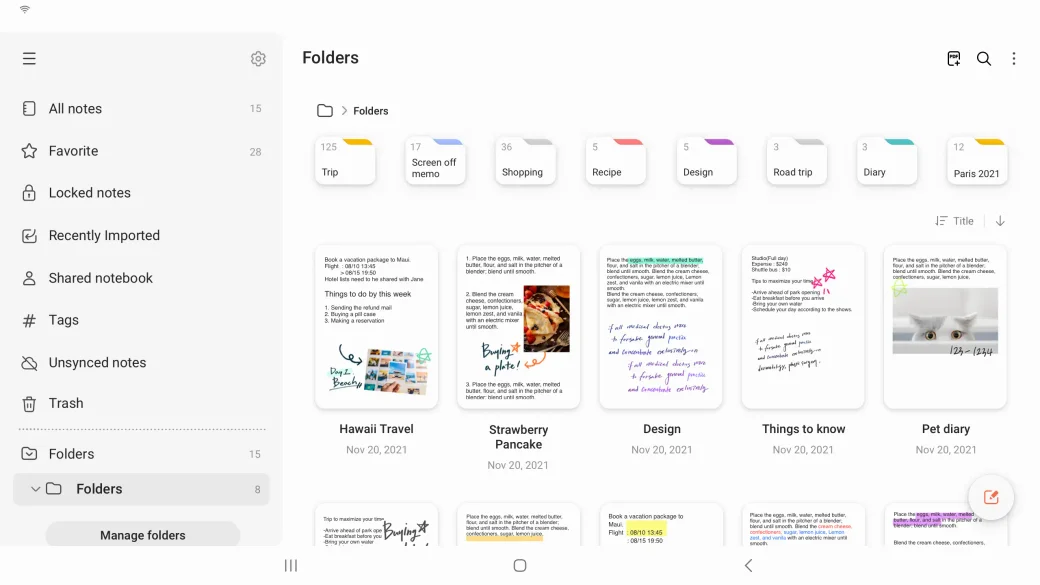
Samsung Notes is a hub for all your hand-written notes, sketches, drawings.
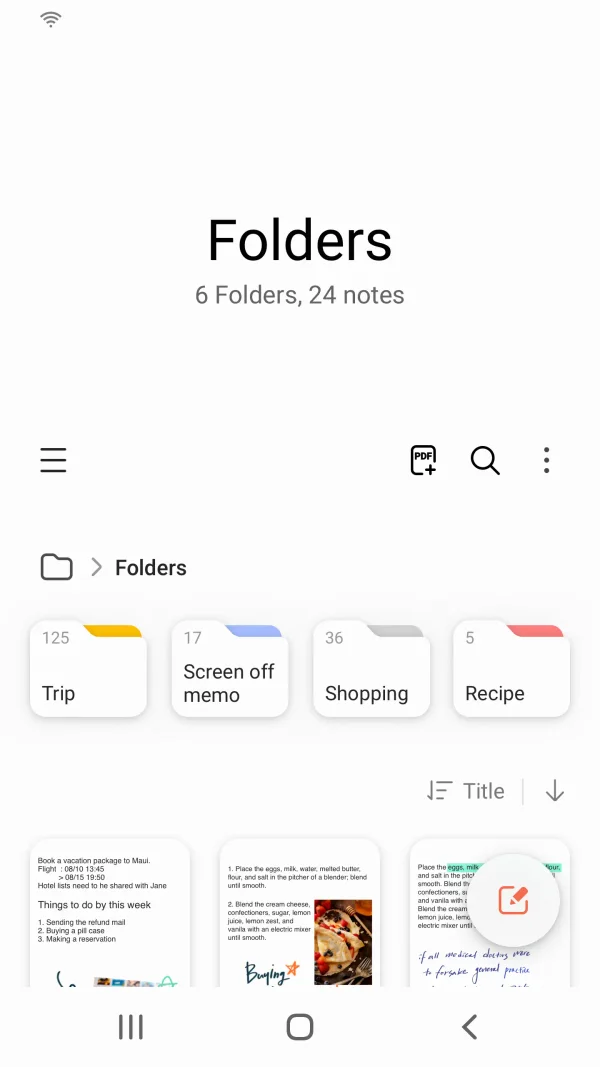
Creating notes
Tap + icon at the bottom of the main screen of Samsung Notes to create notes.
Locking notes
1.Tap the More options button on the main screen of Samsung Notes, select Settings,
then select Lock notes to create a password.
2.Create a password, then tap the note you want to lock.
3.Tap the More options button while viewing a note, then select Lock.
Adding text
Tap keyboard icon at the top of the screen to enter text using the keyboard.
Use the Rich text toolbar to edit the style of the text.
Adding handwriting
Tap Handwriting icon at the top of the screen to add handwriting.
Handwritten text can be recognised. You can also use handwriting to search for keywords in notes.
Adding drawings
Tap drawing icon at the top of the screen to create drawings.
Adding image and voice recordings
Tap image icon at the top of the screen to insert images.
Tap Voice recording icon at the top of the screen to insert voice recordings.
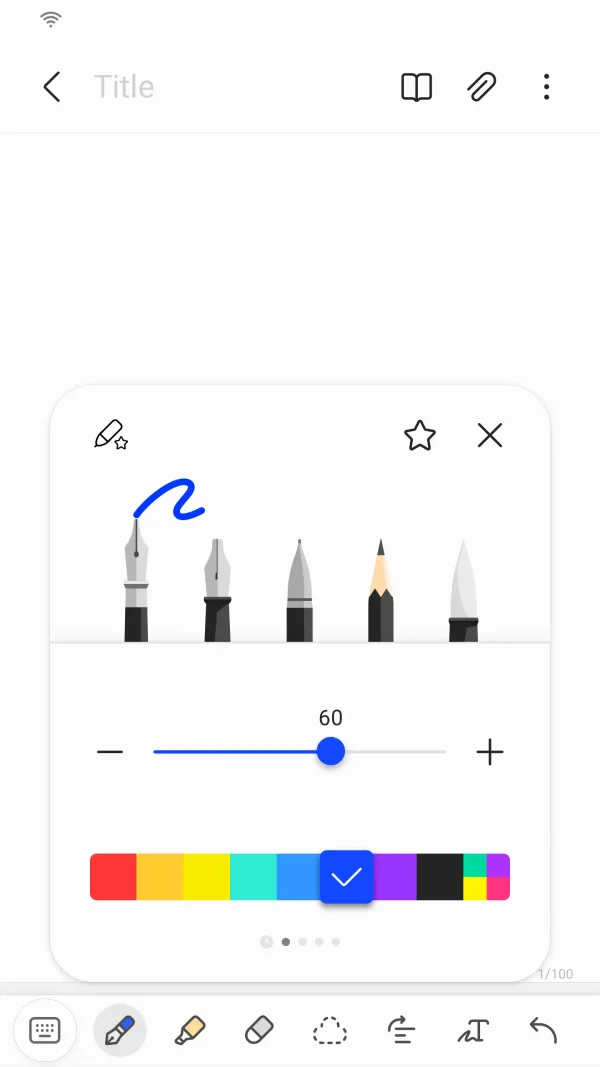
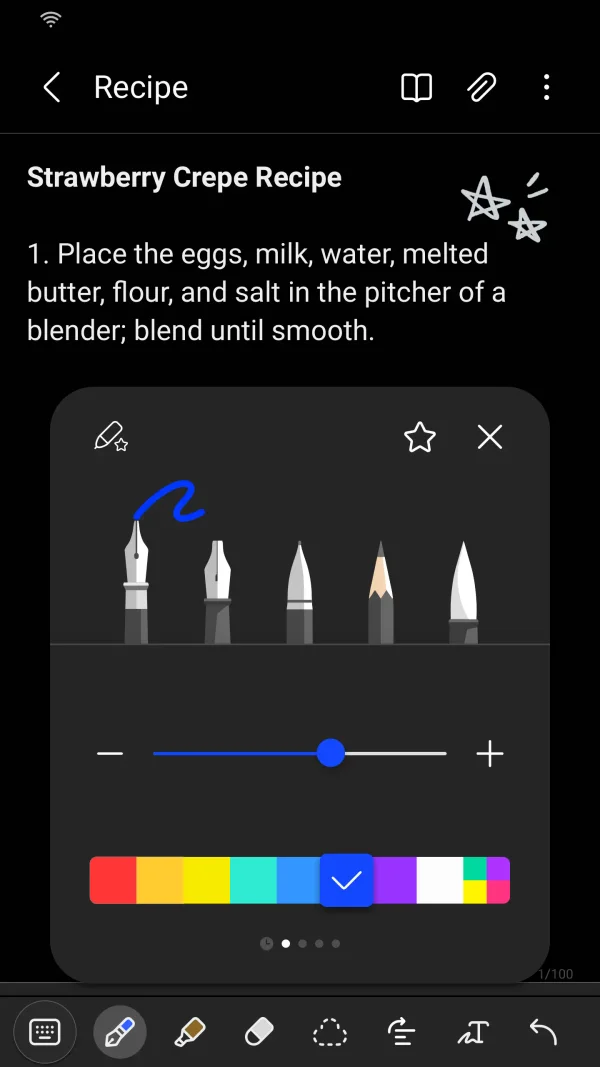
Using pen settings
Select from various pen types, sizes, and colours.
Erasing handwriting
Tap eraser icon at the bottom of the screen, then tap or swipe your finger over the handwriting you want to erase.
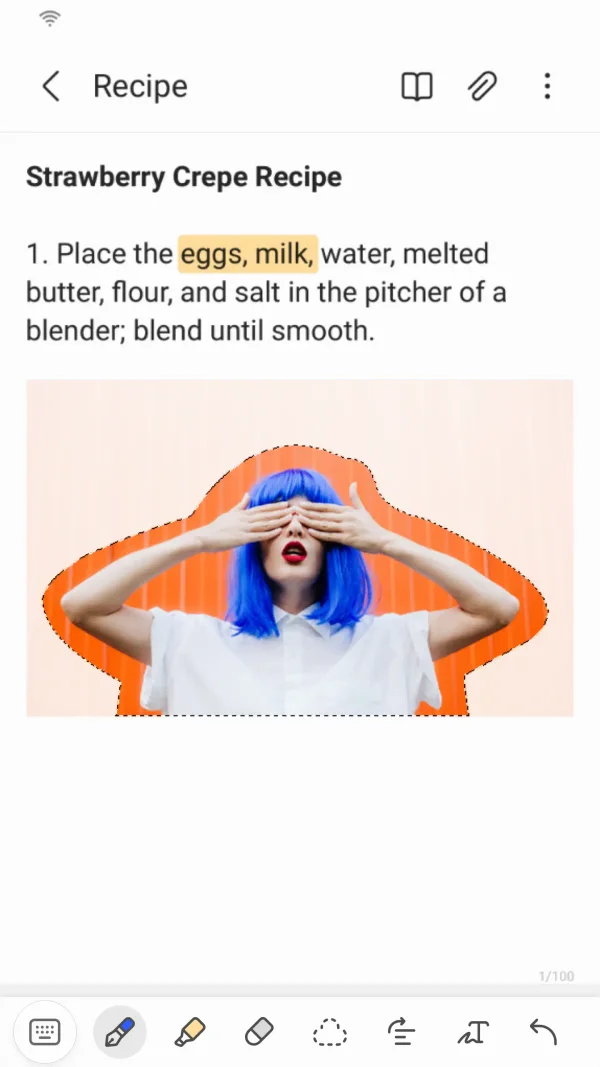
Using Selection mode
Tap selection icon at the bottom of the screen, then select an area of handwriting.
You can then move the selected area, adjust its size, and more.
Using brush settings
Select from various brush types and colours.
Tap the selected brush to view the brush settings again and change more settings such as the size and opacity.
Tap color icon, then select the colour you want to draw with.
Using Smart Switch.
Use Smart Switch to import S Note and Memo data from other devices.
Using Samsung account.
1.Tap the More options button while on the main screen of Samsung Notes, select Settings, then select Import data.
2.Select S Note or Memo data saved using your Samsung account, then tap the DONE button.
Syncing notes via Samsung Cloud
1.Tap the More options button while on the main screen of Samsung Notes, select Settings,
then select Sync with Samsung Cloud.
2.Register with or sign in to Samsung Cloud using your Samsung account.
Samsung Notes data will be synced automatically.
Creating notes while screen off
Detach the S Pen while the screen is turned off to create screen off memos.
データ セーフティ
このアプリが収集・共有するデータについて、Samsung Electronics Co., Ltd.がGoogle Playで申告している内容です。
- 第三者と共有されるデータはありません詳しくは、デベロッパーが共有を申告する方法についての説明をご覧ください
- データは収集されません詳しくは、デベロッパーが収集を申告する方法についての説明をご覧ください
新機能
2025/9/23
• Bug fixed
開発元の連絡先
- メールnoreply.sec@samsung.com
- プライバシーポリシーaccount.samsung.com
- 住所대한민국 16677 경기도 수원시 영통구 삼성로 129 (매탄동)
情報
- 提供元
- Samsung Electronics Co., Ltd.
- カテゴリ
- 仕事効率化
- 更新日
- 2025/9/23
- リリース
- 2016/8/16
- 対象年齢
- 3 歳以上
- 価格
- 無料
- パッケージ名
- com.samsung.android.app.notes