Switch Access
Google LLC- EveryoneAge rating
- ToolsCategory
- Jun 16, 2026Updated
- FreePrice
Links to the official Google Play listing of com.google.android.accessibility.switchaccess. Last checked on Nov 20, 2026.

Screenshots
About this app
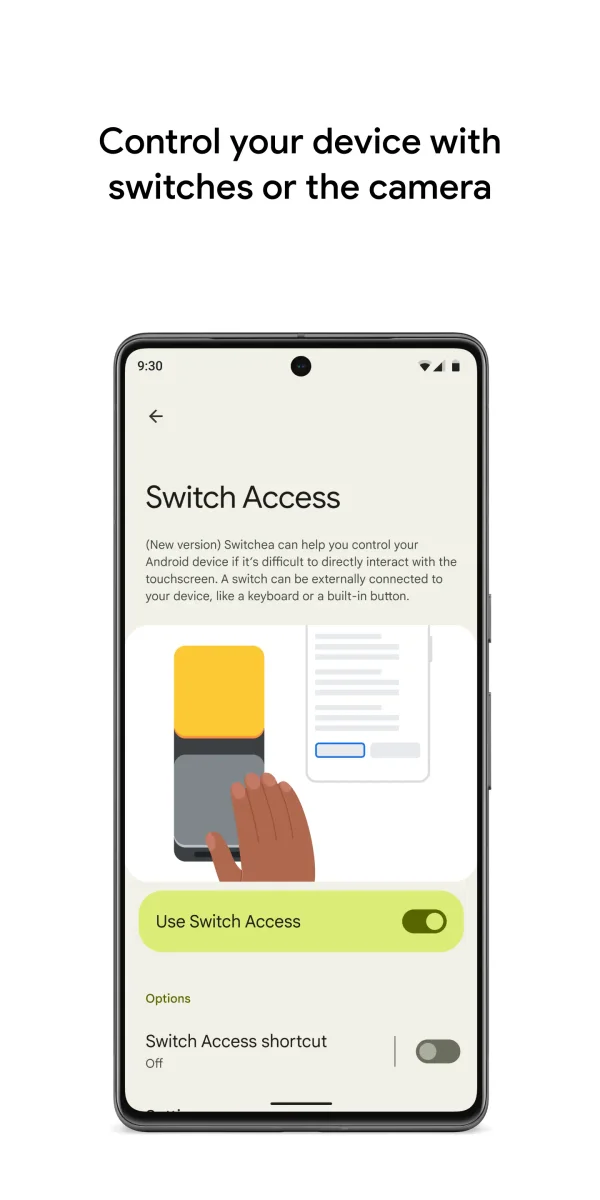
Control your device with switches or the front camera.
Control your phone or tablet using switches or the front camera. You can use switches to select items, scroll, enter text and more.
Switch Access helps you interact with your Android device using one or more switches instead of the touchscreen. Switch Access can be helpful if you can't interact directly with your device.
To get started:
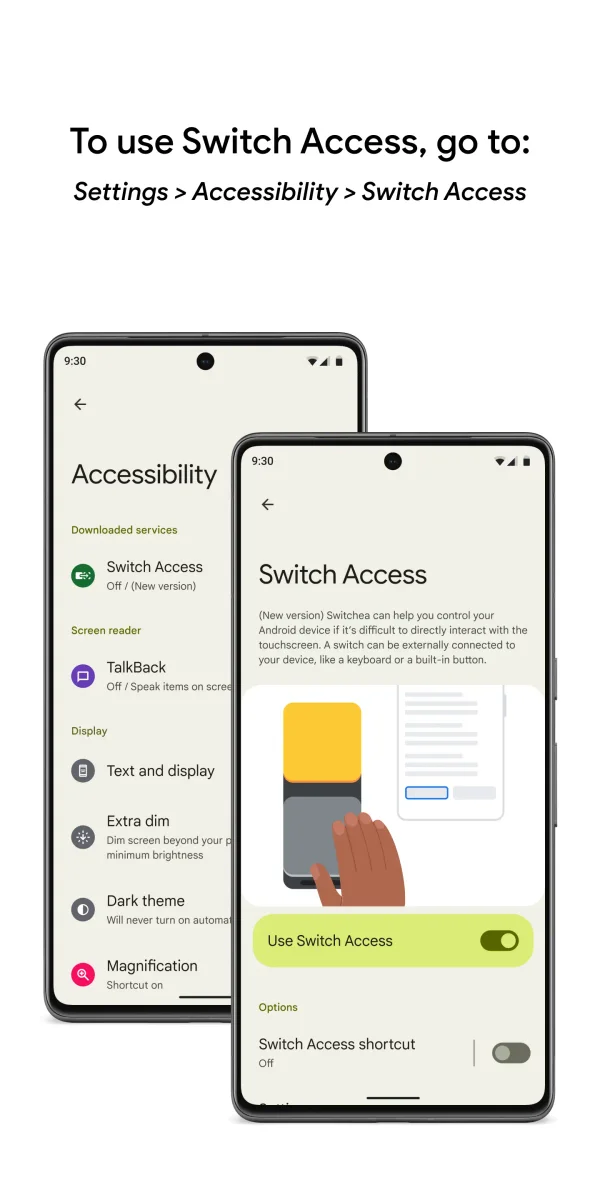
1. Open your device's Settings app.
2. Tap Accessibility > Switch Access.
Set up a switch
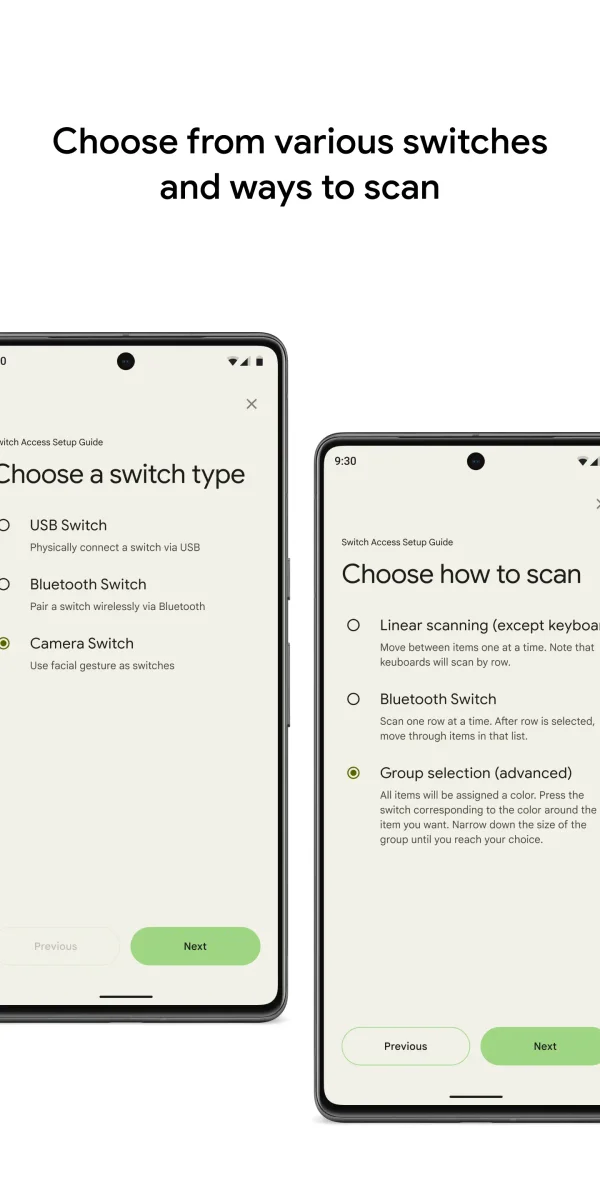
Switch Access scans the items on your screen and highlights each item until you make a selection. You can choose from a few kinds of switches:
Physical switches
• USB or Bluetooth switches, like buttons or keyboards
• On-device switches, like volume buttons
Camera switches
• Open your mouth, smile or raise your eyebrows
• Look left, right or up
Scan your device
After setting up a switch, you can scan and interact with things on the screen.
• Linear scanning: Move between items one at a time.
• Row-column scanning: Scan one row at a time. After a row is selected, move through items in that list.
• Point scanning: Use moving lines to select a specific horizontal and vertical location, then press 'Select'.
• Group selection: Assign switches to different colour groupings. All items on the screen will be assigned a colour. Press the switch corresponding to the colour around the item that you want. Narrow down the size of the group until you reach your choice.
Use the menus
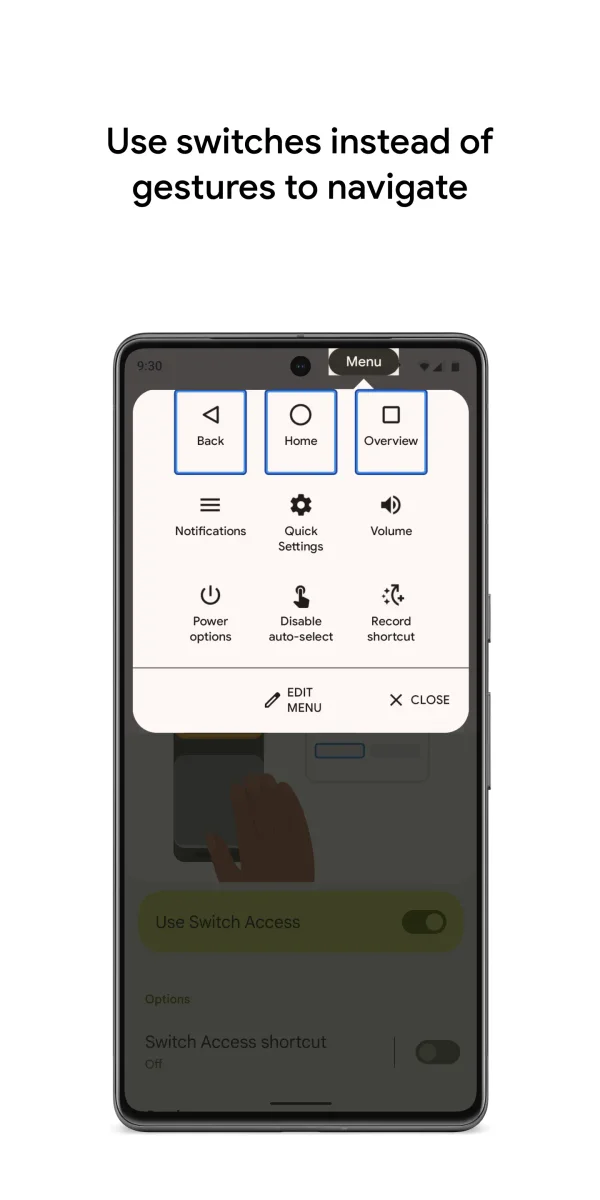
When an element is selected, you'll see a menu with available interactions, like select, scroll, copy, paste and more.
There will also be a menu at the top of the screen to help you move around your device. For example, you can open notifications, go to the home screen, change the volume and more.
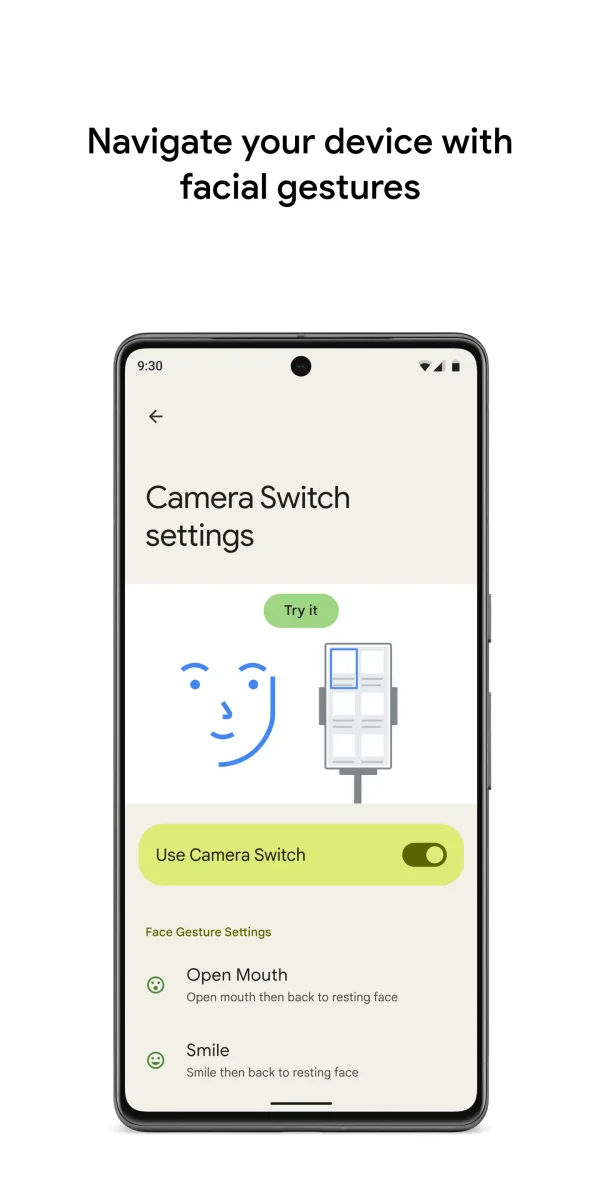
Navigate with camera switches
You can use camera switches to navigate your phone with facial gestures. Browse or select apps on your phone with the use of your phone’s front camera.
You can also customise the sensitivity and duration of each gesture to better fit your needs.
Record shortcuts
You can record touch gestures that can be assigned to a switch or started from a menu. Touch gestures can include pinching, zooming, scrolling, swiping, double tapping and more. You can then start frequent or complex actions with a single switch, for example, recording a gesture that swipes left twice to turn two pages of an eBook.
Permissions notice
• Accessibility service: Because this app is an accessibility service, it can observe your actions, retrieve window content and observe text that you type.
Data safety
What Google LLC declares on Google Play about the data this app collects and shares.
- No data shared with third partiesLearn more about how developers declare sharing
- This app may collect these data typesPersonal info, Messages and 4 others
- Data is encrypted in transit
- Data can’t be deleted
What’s new
Version 1.17.0.892789133 · Jun 16, 2026
This update includes bug fixes.
Developer contact
- Websitegoogle.com
- Emailapps-help@google.com
- Privacy policygoogle.com
- Address1600 Amphitheatre Pkwy Mountain View, CA 94043 United States
Information
- Offered by
- Google LLC
- Category
- Tools
- Version
- 1.17.0.892789133
- Updated
- Jun 16, 2026
- Released
- Jan 6, 2023
- Requires
- Android 8.0 or later
- Age rating
- Everyone
- Price
- Free
- Package name
- com.google.android.accessibility.switchaccess
Similar apps
-
 Digital Wellbeing
Tools
-
 Google Voice
Communication
-
 HiOS Launcher - Fast
Personalization
-
 POCO Launcher 2.0 - Customize,
Personalization
-
 MacroDroid - Device Automation
Tools
-
 Device Care
Tools
-
 XOS Launcher -Cool Stylish
Personalization
-
 AppDash: App Manager & Backup
Tools
-
 Google Fi Wireless
Tools
-
 EZVIZ
Video Players & Editors
-
 Quick Settings app
Productivity
-
 Android Auto
Auto & Vehicles