Epson Setting Assistant
Seiko Epson Corporation- USK ab 0 JahrenAltersfreigabe
- EffizienzKategorie
- 31.08.2026Aktualisiert
- KostenlosPreis
Verlinkt auf den offiziellen Google Play-Eintrag von com.epson.projector.settingassistant. Zuletzt geprüft am 27.11.2026.
Screenshots
Über diese App
Automatische Übersetzung von Google. Originalsprache: Englisch (Vereinigte Staaten).
Korrigieren Sie die Form eines projizierten Bildes, indem Sie Bilder mit Ihrer Kamera aufnehmen.
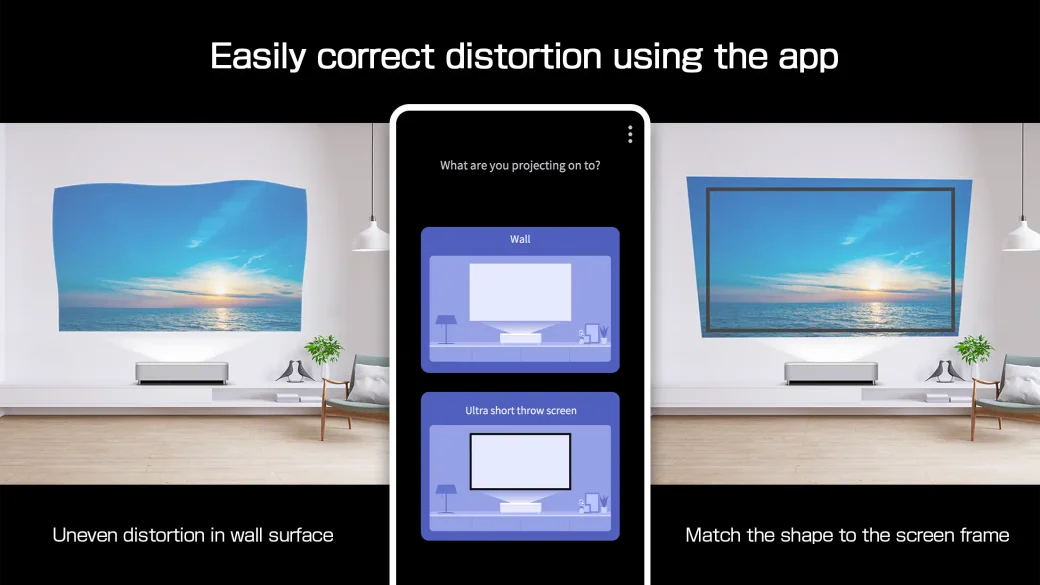
Epson Setting Assistant ist eine App, die mithilfe Ihrer Kamera automatisch die Form eines projizierten Bildes korrigiert.
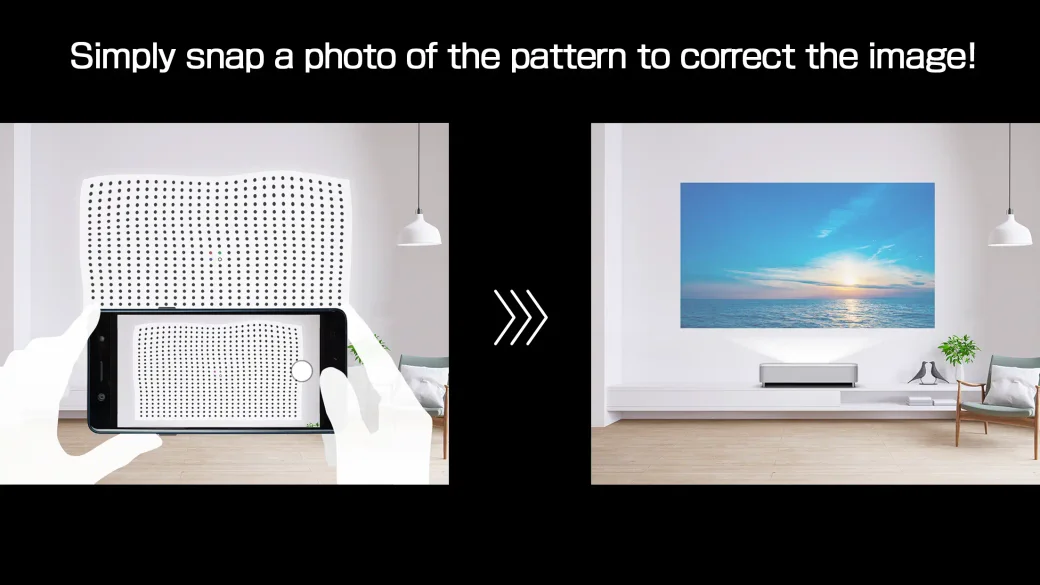
Durch das Fotografieren des projizierten Musters korrigiert die App automatisch Verzerrungen im projizierten Bild und passt dessen Form an die Leinwand an.
[Hauptfunktionen]
1) Formkorrektur
Die App passt das Bild an eine rechteckige Form an oder richtet es an einem Rahmen, z. B. einer Projektionsleinwand, aus.
2) Unebenheitskorrektur
Die App erkennt kleine Oberflächenunebenheiten, z. B. an einer Wand, und korrigiert Verzerrungen im projizierten Bild.
[Für Benutzer von Heimprojektoren (EH-Serie): Verwendung der App]
Stellen Sie sicher, dass Ihr Android-Gerät und der Projektor mit demselben Netzwerk verbunden sind.
1. Wählen Sie im Menü des Projektors [Installation] ([Installation] > [Geometriekorrektur-Assistent]).
2. Öffnen Sie diese App auf Ihrem Android-Gerät und wählen Sie [Heim] als Projektortyp aus, um die automatische Verbindung zum Projektor herzustellen.
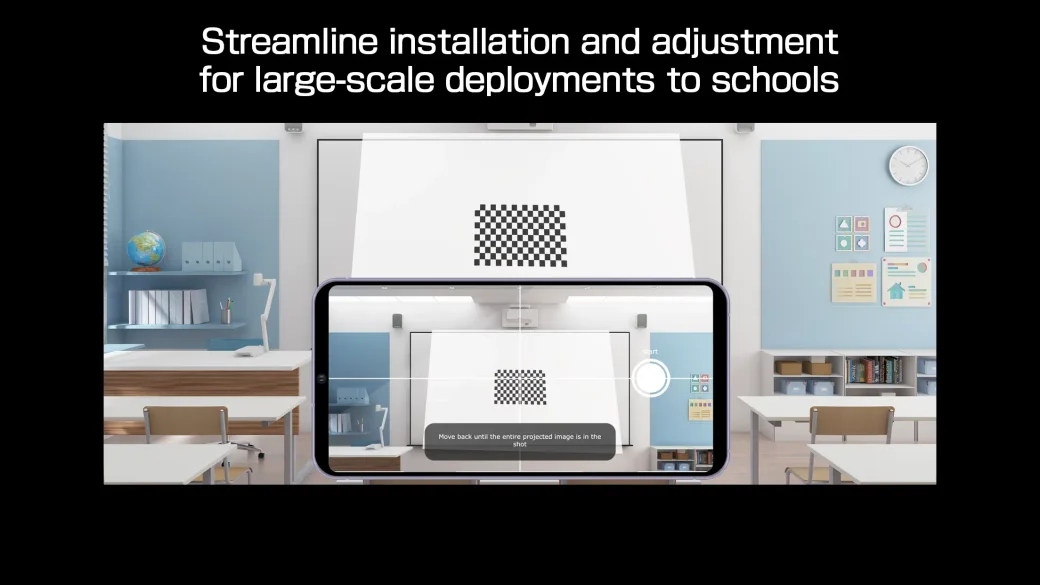
3. Folgen Sie den Anweisungen auf dem Bildschirm, um mit der Kamera in der App ein Foto des projizierten Musters aufzunehmen. Die Korrekturen werden automatisch vorgenommen.
[Für Benutzer von Business-Projektoren (EB-Serie): Verwendung der App]
Stellen Sie sicher, dass die Einstellung [WLAN-Stromversorgung] im Menü [Verwaltung] des Projektors auf [Ein] gesetzt ist.
1. Wählen Sie im Menü des Projektors [Installation] > [Mit Einstellungsassistenten verbinden], um einen QR-Code zu projizieren.
2. Öffnen Sie diese App auf Ihrem Android-Gerät, wählen Sie [Business] als Projektortyp aus und scannen Sie den QR-Code, um die automatische Verbindung zum Projektor herzustellen.
3. Folgen Sie den Anweisungen auf dem Bildschirm, um mit der Kamera in der App ein Foto des projizierten Musters aufzunehmen. Die Korrekturen werden automatisch vorgenommen.
[Unterstützte Projektoren]
Weitere Informationen finden Sie unter https://support.epson.net/projector_appinfo/setting_assistant/en/.
Je nach Projektormodell sind möglicherweise nicht alle Funktionen verfügbar.
[Hinweise zur Verwendung]
Je nach Umgebung, z. B. bei einer gekrümmten Projektionsfläche oder einer Tapete mit rauer Struktur oder Mustern, ist die automatische Korrektur über die App möglicherweise nicht möglich. Korrigieren Sie in diesen Fällen die Bildform bitte über das Menü des Projektors.
Je nach Smartphone/Tablet kann es vorkommen, dass die WLAN-Einstellungen die Verbindung zum Projektor vorübergehend verhindern. Schalten Sie Ihr WLAN aus und wieder ein und versuchen Sie es erneut.
Detaillierte wichtige Hinweise finden Sie unter https://download2.ebz.epson.net/sec_pubs_visual/apps/setting_assistant/230/EN/index.html.
Sie können diese Informationen auch in der [Online-Hilfe] im Menü oben rechts in der App einsehen.
Die hier verwendeten Bilder dienen nur der Veranschaulichung. Die tatsächlichen Bilder können abweichen.
Wir freuen uns über Ihr Feedback zur Verbesserung dieser App. Sie erreichen uns über „Entwicklerkontakt“. Bitte beachten Sie, dass wir keine individuellen Anfragen beantworten können. Bei Fragen zu Ihren personenbezogenen Daten wenden Sie sich bitte an Ihre regionale Niederlassung (siehe Datenschutzerklärung).
[App-Berechtigungen] Zur Nutzung der App sind folgende Berechtigungen erforderlich:
[Erforderlich] Kamera
Zum Erfassen von Korrekturmustern oder QR-Codes für die Verbindung.
Originaltext anzeigen
Epson Setting Assistant is an app that automatically corrects the shape of a projected image by using your camera.
By taking a shot of the projected pattern, the app automatically corrects distortion in the projected image and adjusts its shape to match the screen.
[Main Features]
1) Shape correction
The app adjusts the image to a rectangular shape or aligns it with a frame, such as a projector screen.
2) Unevenness correction
The app detects small surface irregularities, such as on a wall, and corrects distortion in the projected image.
[For Home Projector (EH Series) Users: Using the App]
Make sure your Android device and the projector are connected to the same network.
1. Select [Installation] ([Installation] > [Geometry Correction Wizard]) from the projector's menu.
2. Open this app on your Android device and select [Home] as the projector type to automatically connect to the projector.
3. Follow the on-screen instructions to take a shot of the projected pattern using the camera in the app, and the corrections will be completed automatically.
[For Business Projector (EB Series) Users: Using the App]
Make sure the [Wireless LAN Power] setting is set to [On] in the projector‘s [Management] menu.
1. Select [Installation] > [Connect to Setting Assistant] from the projector's menu to project a QR code.
2. Open this app on your Android device, select [Business] as the projector's type, and then scan the QR code to automatically connect to the projector.
3. Follow the on-screen instructions to take a shot of the projected pattern using the camera in the app, and the corrections will be completed automatically.
[Supported Projectors]
Visit https://support.epson.net/projector_appinfo/setting_assistant/en/ for details.
Depending on your projector model, some features may not be available.
[Notes for use]
Depending on your environment, such as a curved projection surface or wallpaper with rough textures or patterns, automatic correction using the app may not be available. In these situations, please correct the image shape from the projector's menu.
Depending on your smartphone/tablet, the Wi-Fi settings may prevent you from temporarily connecting to the projector. Turn your Wi-Fi off and then on again and try again.
For detailed important points, visit https://download2.ebz.epson.net/sec_pubs_visual/apps/setting_assistant/230/EN/index.html.
You can also check these from the [Online support guide] in the menu at the top right of the app.
Images used here are for illustrative purposes only. The actual images may differ.
We welcome any feedback you have that could help us to improve this app. You can contact us through "Developer contact". Please note that we cannot reply to individual inquiries. For inquiries regarding personal information, please contact your regional branch described in the Privacy Statement.
[App Permissions]
To use the app, the following permissions are required.
[Required] Camera
For capturing correction patterns or QR codes for connection.
Datensicherheit
Was Seiko Epson Corporation bei Google Play zu den Daten angibt, die diese App erfasst und weitergibt.
- Keine Daten werden mit Drittunternehmen oder -organisationen geteiltWeitere Informationen dazu, wie Entwickler Angaben zur Weitergabe von Daten machen
- Diese App kann die folgenden Datentypen erhebenE-Mail-Adresse
- Daten werden bei der Übertragung verschlüsselt
- Daten können nicht gelöscht werden
Neue Funktionen
Version 2.3.0 · 31.08.2026
Added supported projectors
Kontakt zum Entwickler
- Websiteepson.com
- E-MailFeedback-AndroidAppsPj@exc.epson.co.jp
- Datenschutzerklärungglobal.epson.com
- Adresse日本 〒160-0022 東京都SHINJUKU-KU 4-1-6, SHINJUKU JR SHINJUKU MIRAI TOWER 29F
Informationen
- Angeboten von
- Seiko Epson Corporation
- Kategorie
- Effizienz
- Version
- 2.3.0
- Aktualisiert
- 31.08.2026
- Veröffentlicht
- 26.08.2022
- Erfordert
- Android 12 oder höher
- Altersfreigabe
- USK ab 0 Jahren
- Preis
- Kostenlos
- Paketname
- com.epson.projector.settingassistant
Ähnliche Apps
-
 Sonar - Gesundheit & Leistung
Gesundheit & Fitness
-
 Print Master
Tools
-
 Phomemo
Tools
-
 CuboAi Babyphone
Eltern
-
 Dzees Home
Tools
-
 Princh
Effizienz
-
 Airthings
Haus & Garten
-
 Aqara Home
Haus & Garten
-
 CloudEdge
Lifestyle
-
 VicoHome: Smart Home Camera
Videoplayer & Editors
-
 Aaptiv: Fitness for Everyone
Gesundheit & Fitness
-
 Aeromatic: AeroPress Recipes
Essen & Trinken